AWS Hackathon - from Lore to cloud playtest
Combine Lore, Horde, Anchorpoint and AWS GameLift to commit, build, deploy and cloud test your game
October 2, 2026
8
min read

TL;DR
AutoCAD is a cornerstone of the engineering, architecture, and design industries. Its robust drafting and 3D modeling capabilities make it essential for everything from floor plans to complex mechanical components. Although many professionals are accustomed to manual versioning, saving files as "Project_v1," "Project_v2_final," and so on, modern collaboration requires a more reliable system.
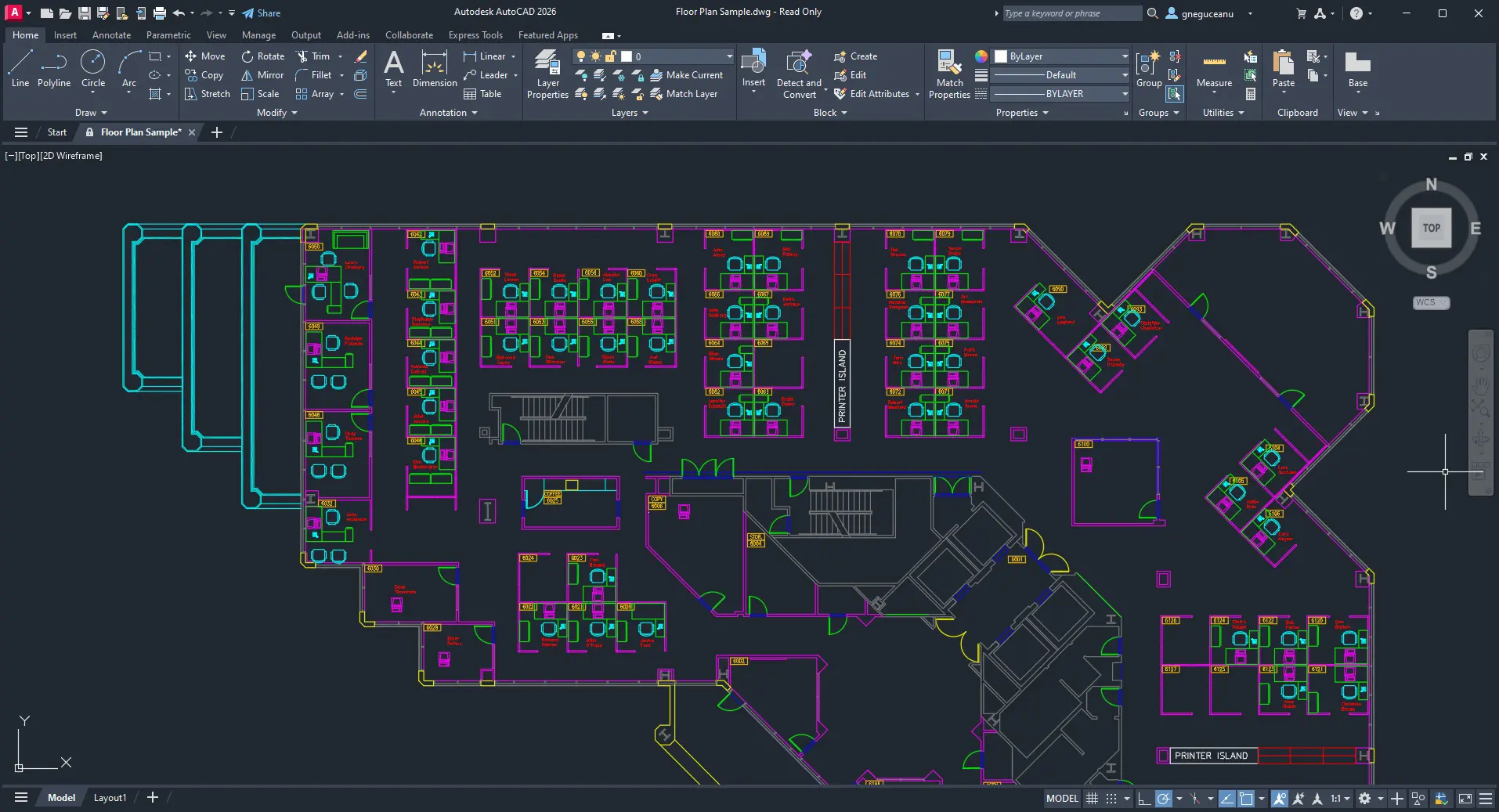
Version control, also known as source control, is the practice of tracking and managing changes to files. For AutoCAD users, it means maintaining a complete history of every iteration of a .dwg file while avoiding duplicate files in your folders.
Common sync solutions, such as Dropbox or Google Drive, are often inadequate for professional CAD environments. These solutions lack built-in file locking and fail to provide a clear history of changes. They also make it difficult to revert to an earlier version of a file if it becomes corrupted or an error is made.
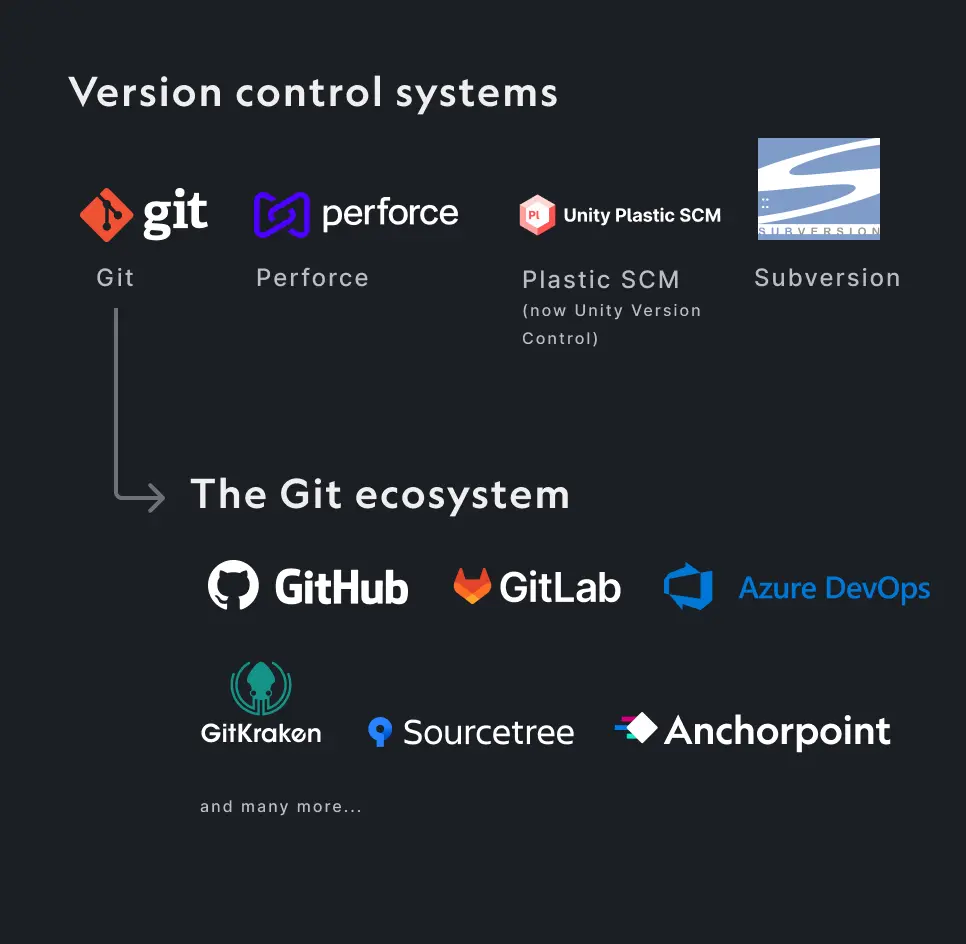
Similar to tools like Perforce, SVN, or Unity Version Control, Git is a widely used version control system. Its widespread adoption is driven by an extensive open-source ecosystem, including platforms like GitHub and GitLab, and various desktop clients. By enabling developers to work independently and merge changes asynchronously, Git significantly streamlines collaborative workflows.
Choosing between a Git-based workflow and Autodesk Vault depends on your project's scope and budget.
Git is a distributed version control solution that allows team members to work independently and sync their changes to a central server.
✔ Cost-Effective: Git itself is free and open-source, making it accessible for individuals and smaller studios.
✔ No Lock-in: Anchorpoint follows a "no lock-in" DNA; your files are not uploaded to yet another proprietary cloud, but stay in your own Git repository.
✔ Artist-Friendly: Anchorpoint provides a desktop application that offers simple guidance for non-technical users who don't want to deal with complex DevOps.
✖ No Native Merge: Because .dwg files are binary, Git cannot "merge" changes from two people editing the same file at once. This is why file locking is essential.
Vault is a proprietary system designed specifically for Autodesk products.
✔ Native Integration: Deeply integrated into the AutoCAD interface for managing metadata and parts.
✔ Enterprise Features: Includes advanced bill-of-materials (BOM) management and lifecycle states.
✖ High Cost: Licensing and server maintenance can be expensive, especially for smaller teams.
✖ Complexity: Requires specialized IT knowledge to set up and maintain.
Standard Git often struggles with large binary files. However, tools like Anchorpoint adds missing features to Git, such as handling binary files without prior configuration. By using Git LFS (Large File Storage), your .dwg files are tracked efficiently, ensuring your repository stays fast even as your project grows.
Since AutoCAD files cannot be merged, preventing "merge conflicts" is vital. Anchorpoint's file locking system can lock 1,000 files in under a second. When you start working on a drawing, you lock the file in Anchorpoint. Your team members will see that the file is in use, preventing them from making changes that would otherwise be overwritten.
Anchorpoint is more than just a tool for syncing; it provides asset management that helps designers find files more easily. You can use the metadata system to tag and search for specific assets within your project pipeline. Additionally, Anchorpoint allows for custom thumbnails, so you can visually browse your .dwg files without having to open AutoCAD for every preview.
To use AutoCAD with Git, we need two things:
GitHub is the industry leader, but its file size limits (2GB for Free, 4GB for Team, and 5GB for Enterprise) and LFS pricing ($0.07/GB for storage; $0.0875/GB for data transfer) after the free 10GB monthly(storage/traffic) can be restrictive. If you are dealing with large binary files, Azure DevOps offers a more cost-effective LFS solution, or you can host your own Git server to maintain full sovereignty over your data.
In this tutorial, we will use Anchorpoint because it is ideal for artists and engineers. It has all the configurations ready to go for 3D creation suites like Blender and CAD projects. It can also generate thumbnails of the models, which can also be replaced manually.

Begin by registering an account at dev.azure.com. Once your account is set up, you can proceed to create a new project within Azure DevOps. While the initial setup might feel a bit cumbersome, it's a one-time process, where future projects will be much quicker to configure.
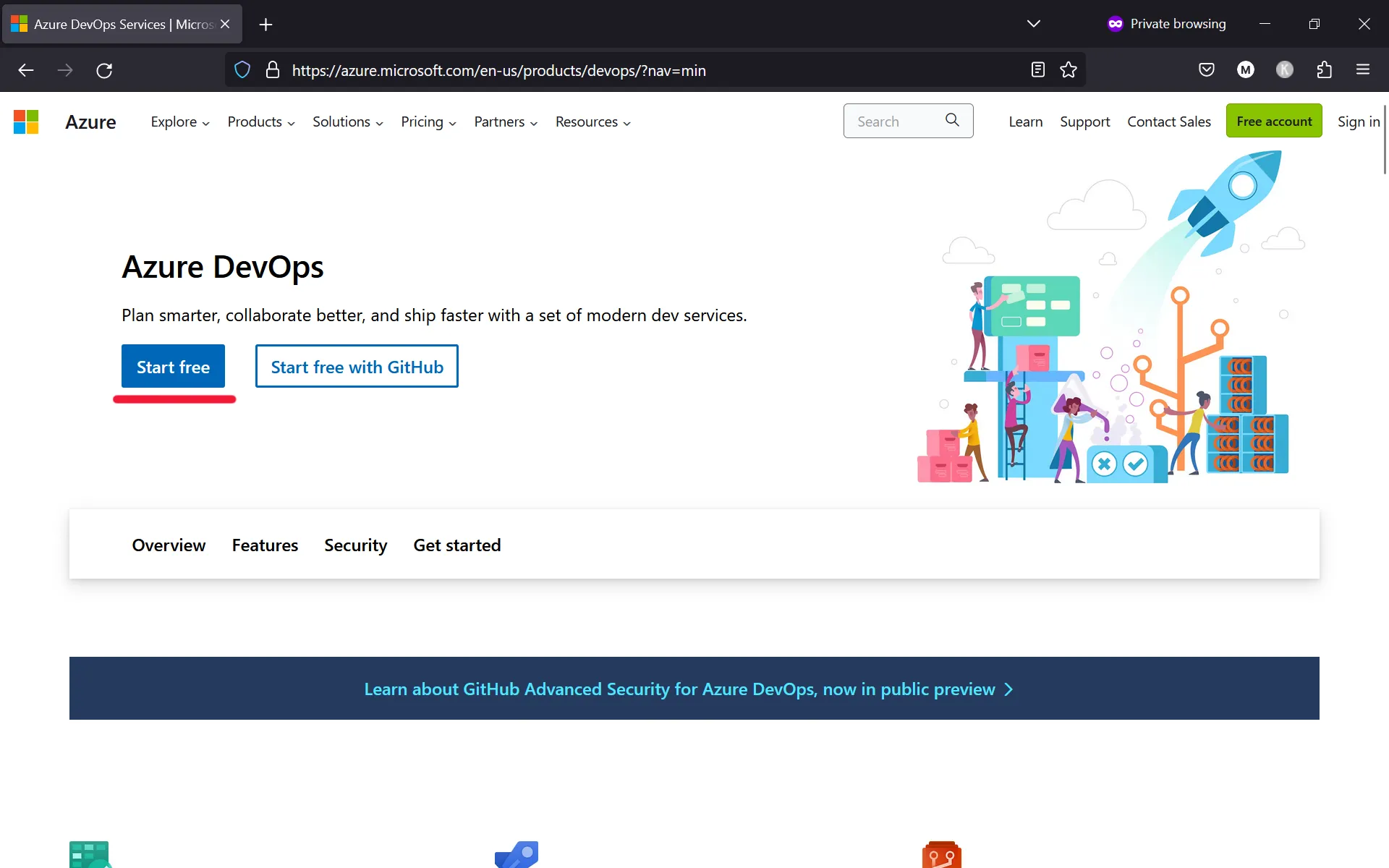
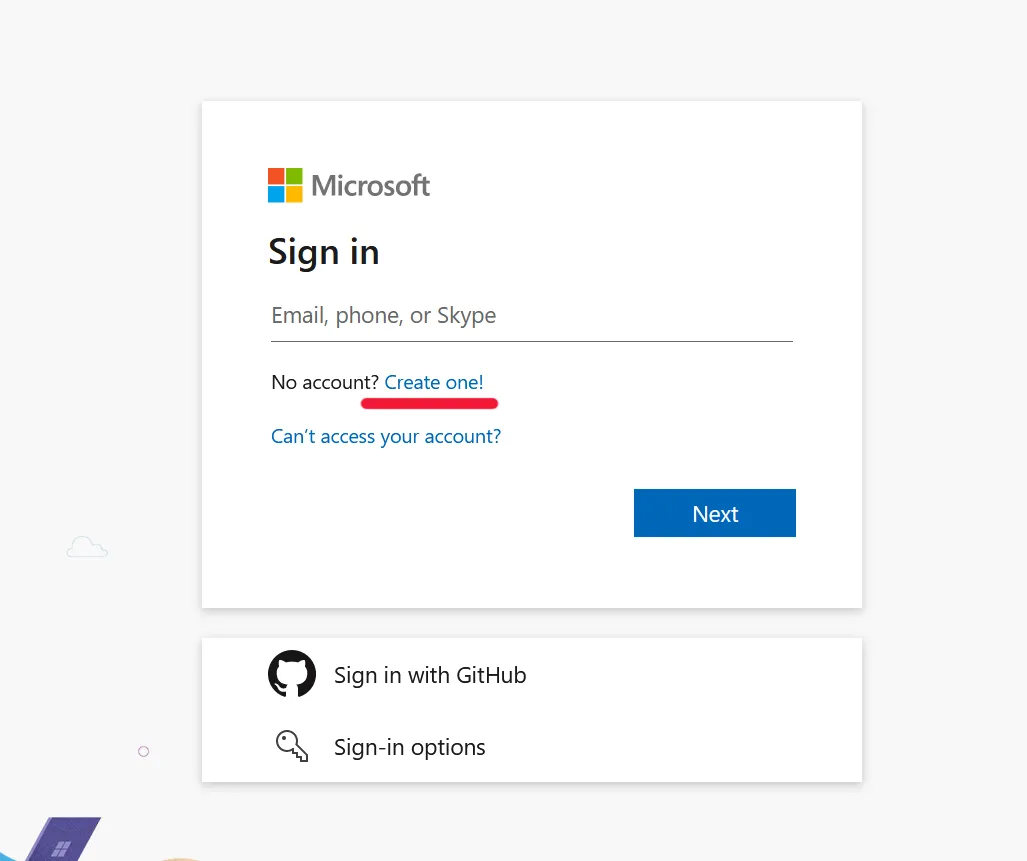
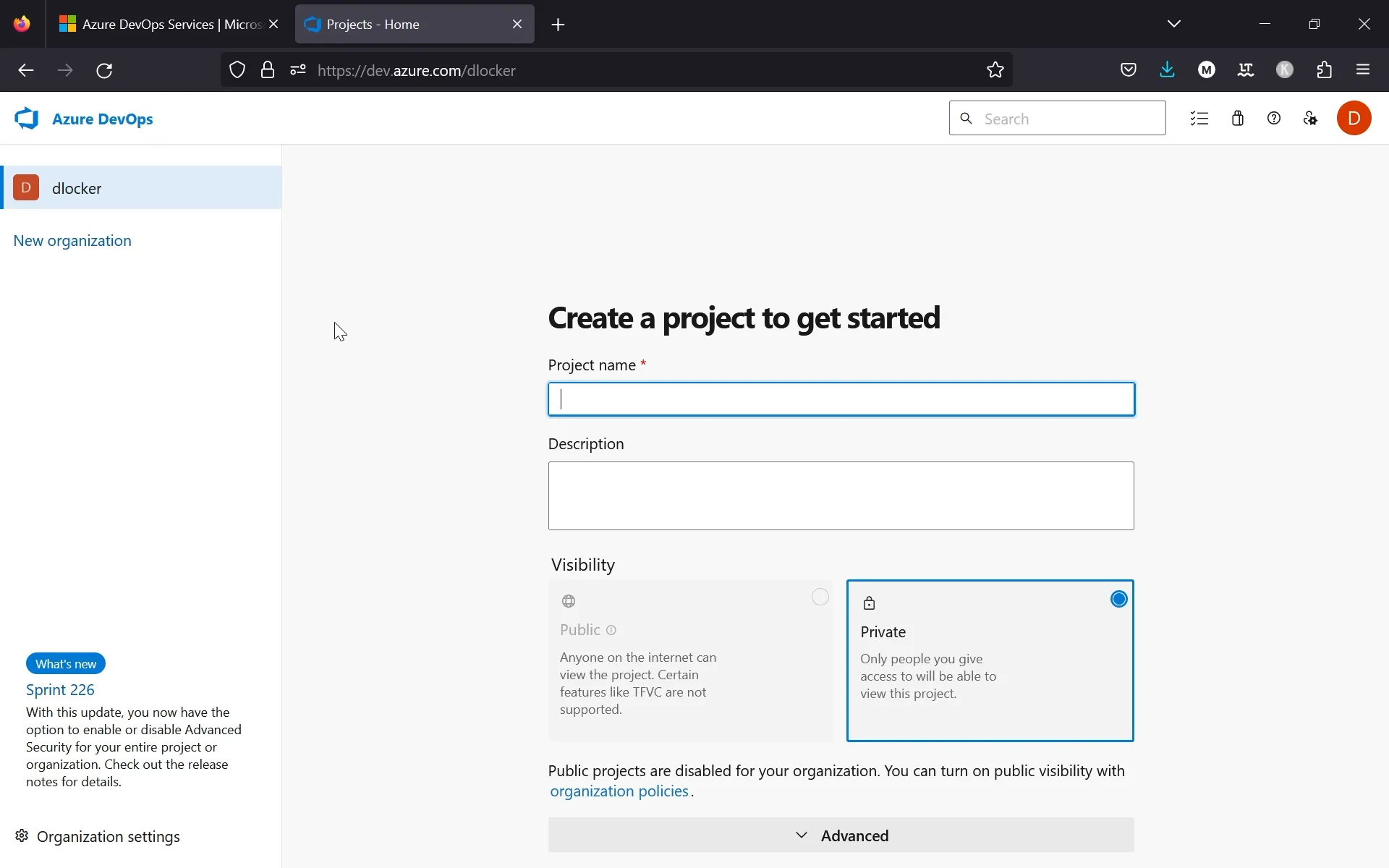
To link Azure DevOps with Anchorpoint, follow the setup instructions outlined below. If you plan to work offline, you can opt for the Shared Folder method when creating a new project.
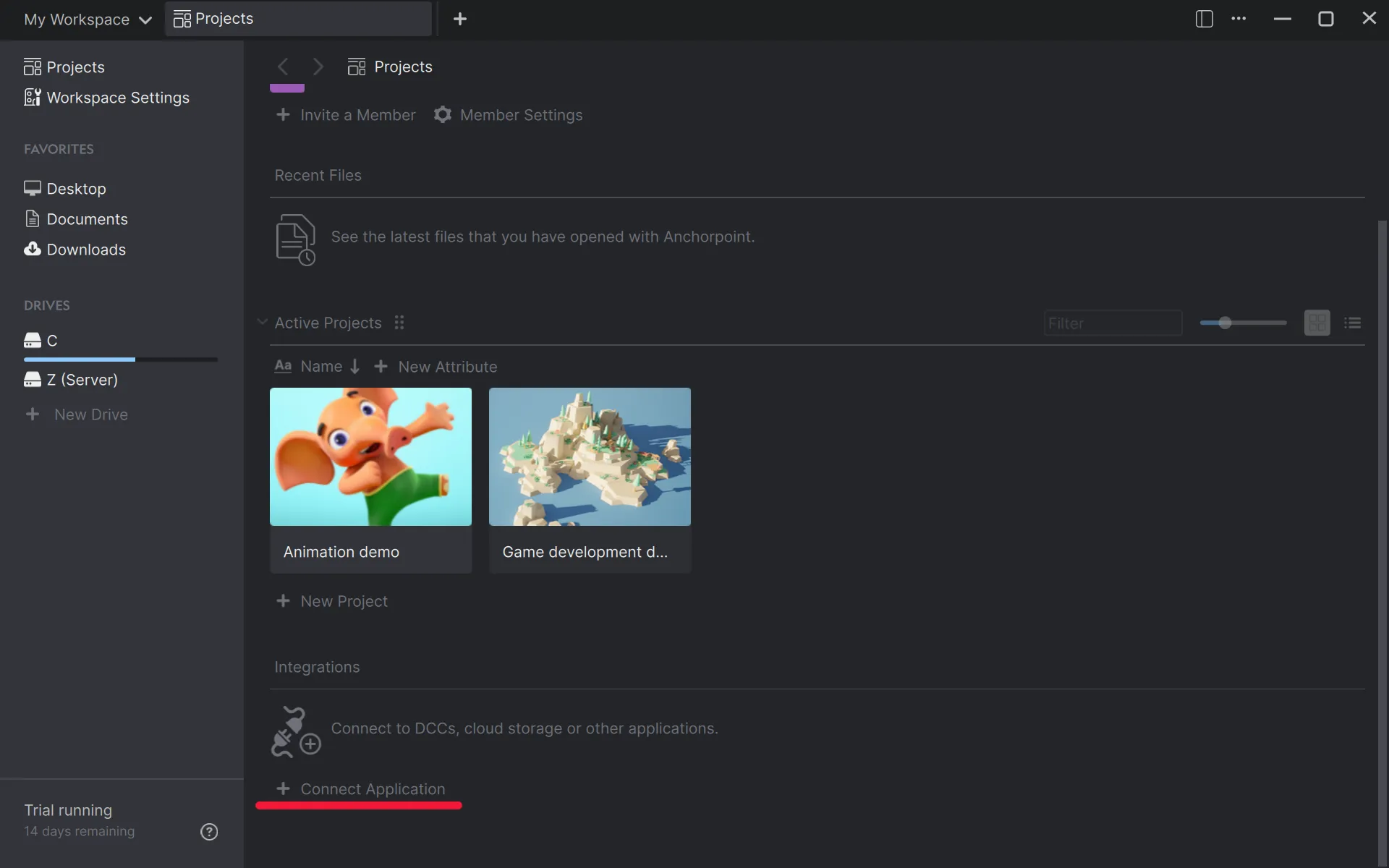
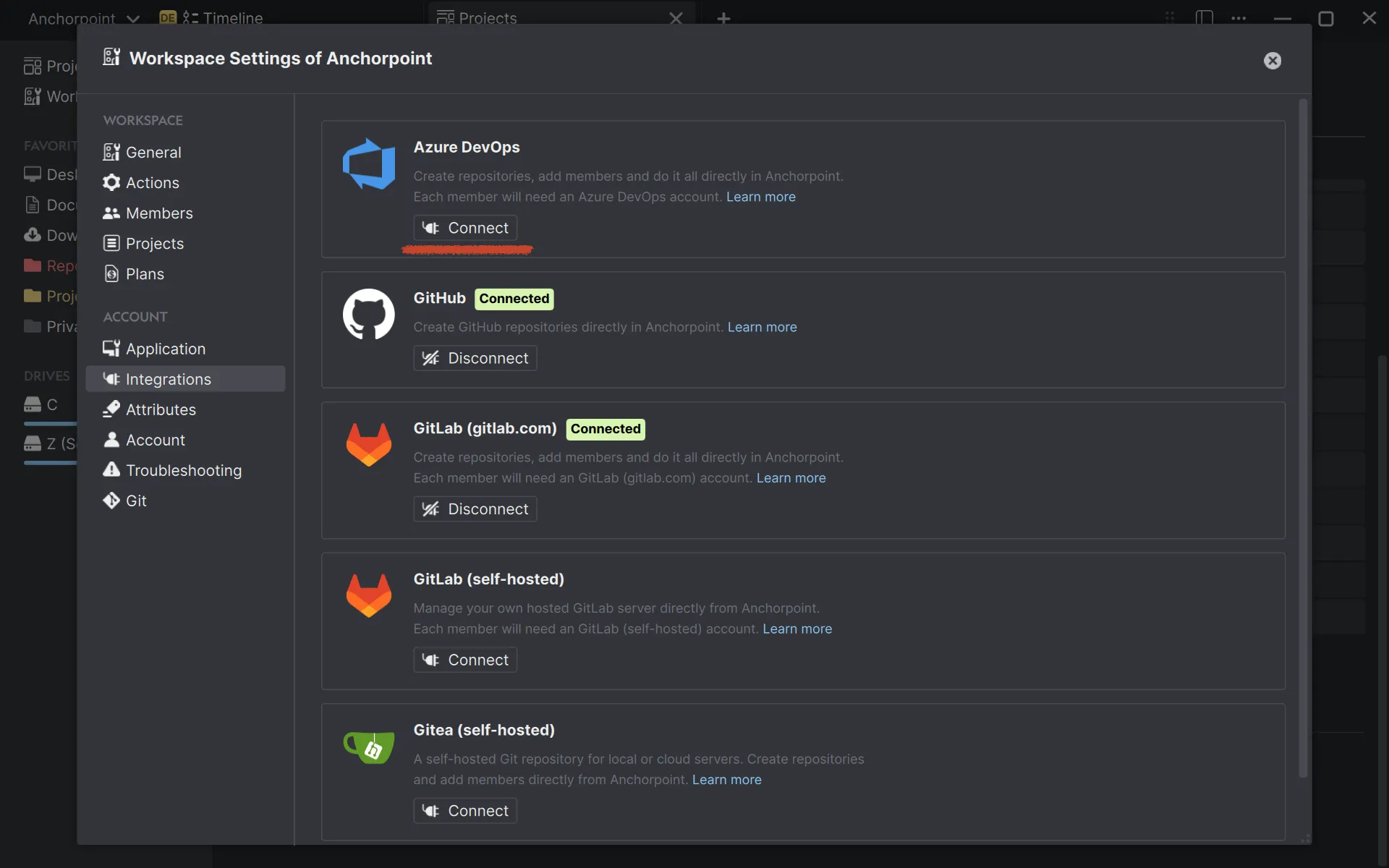
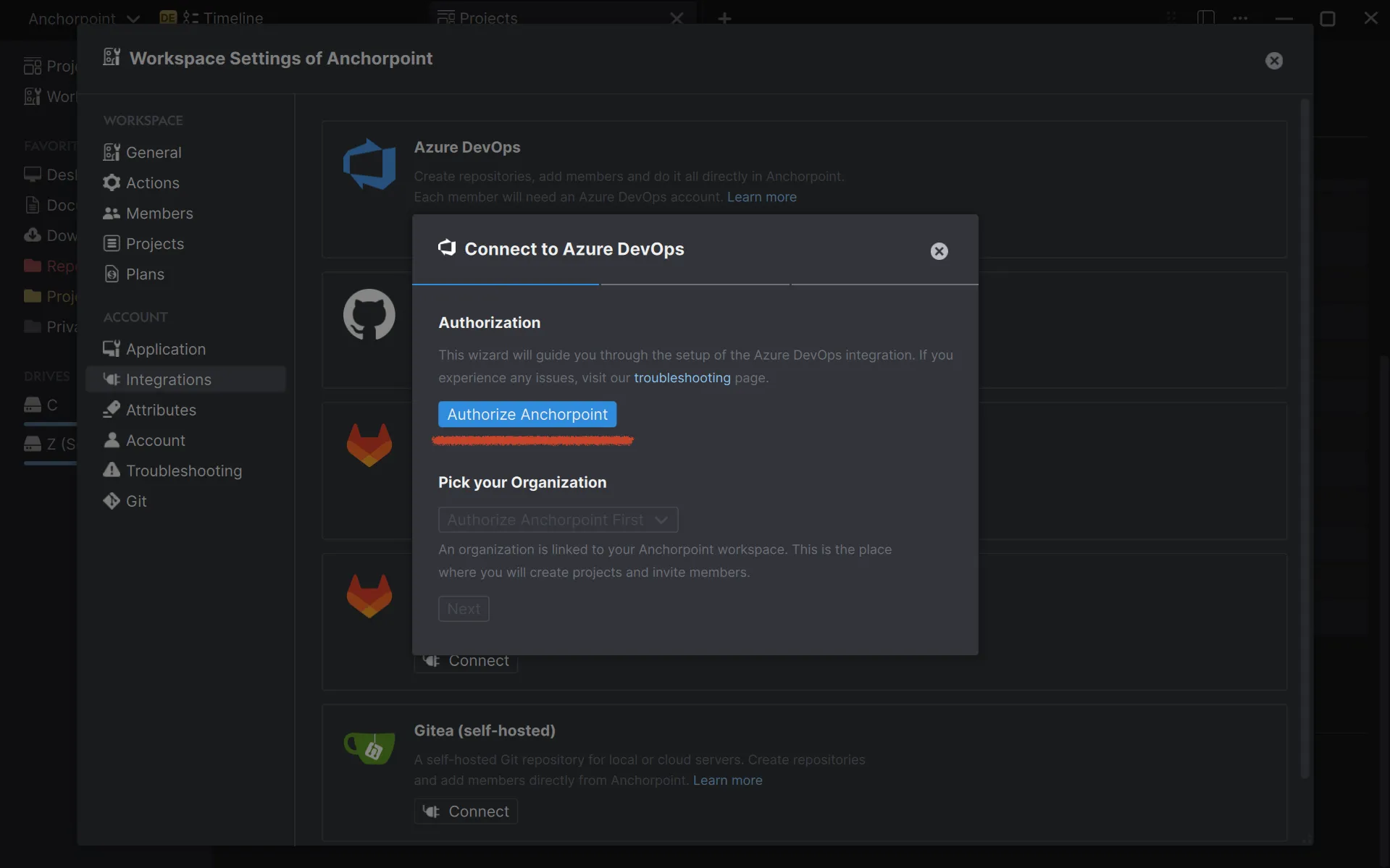
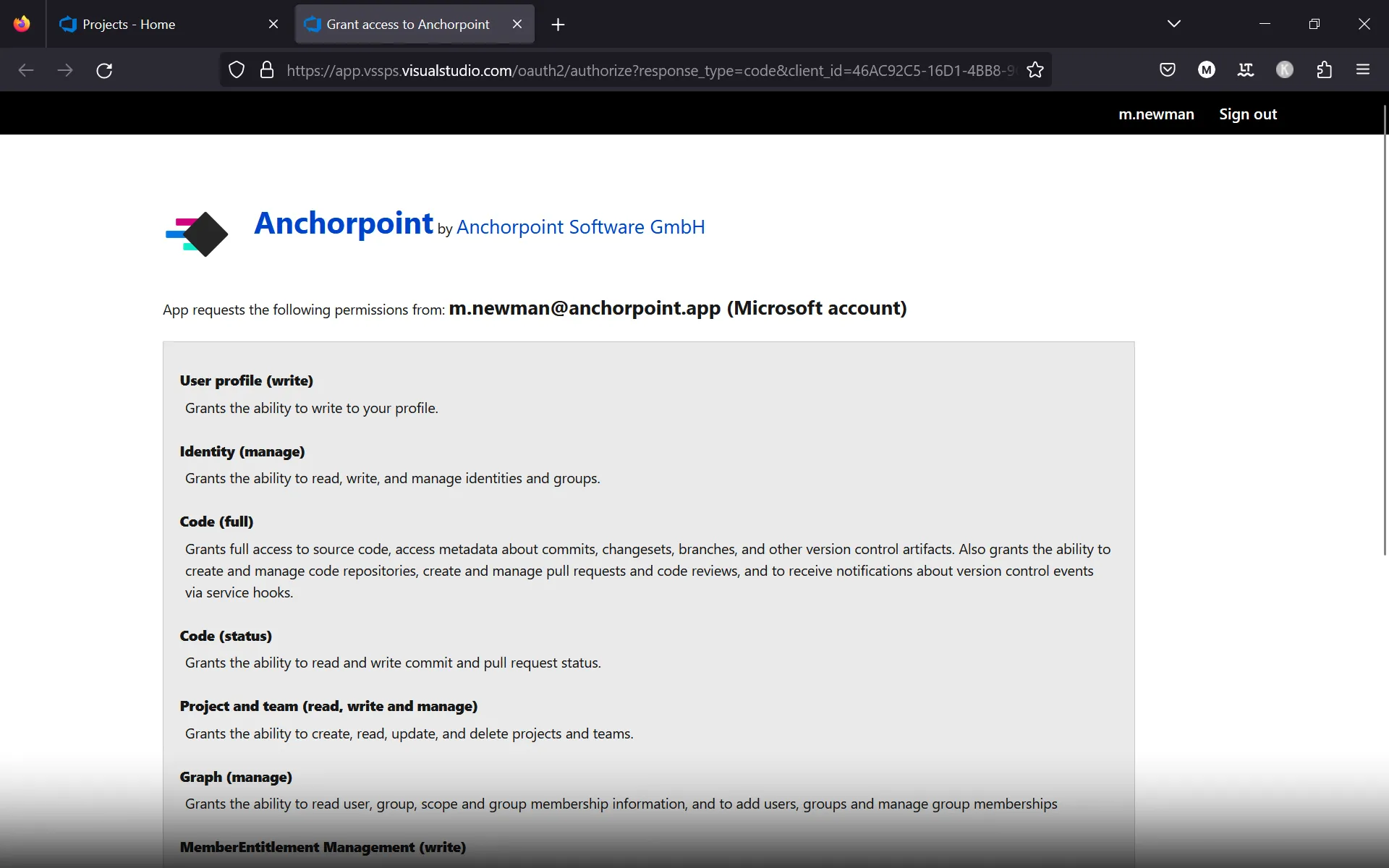
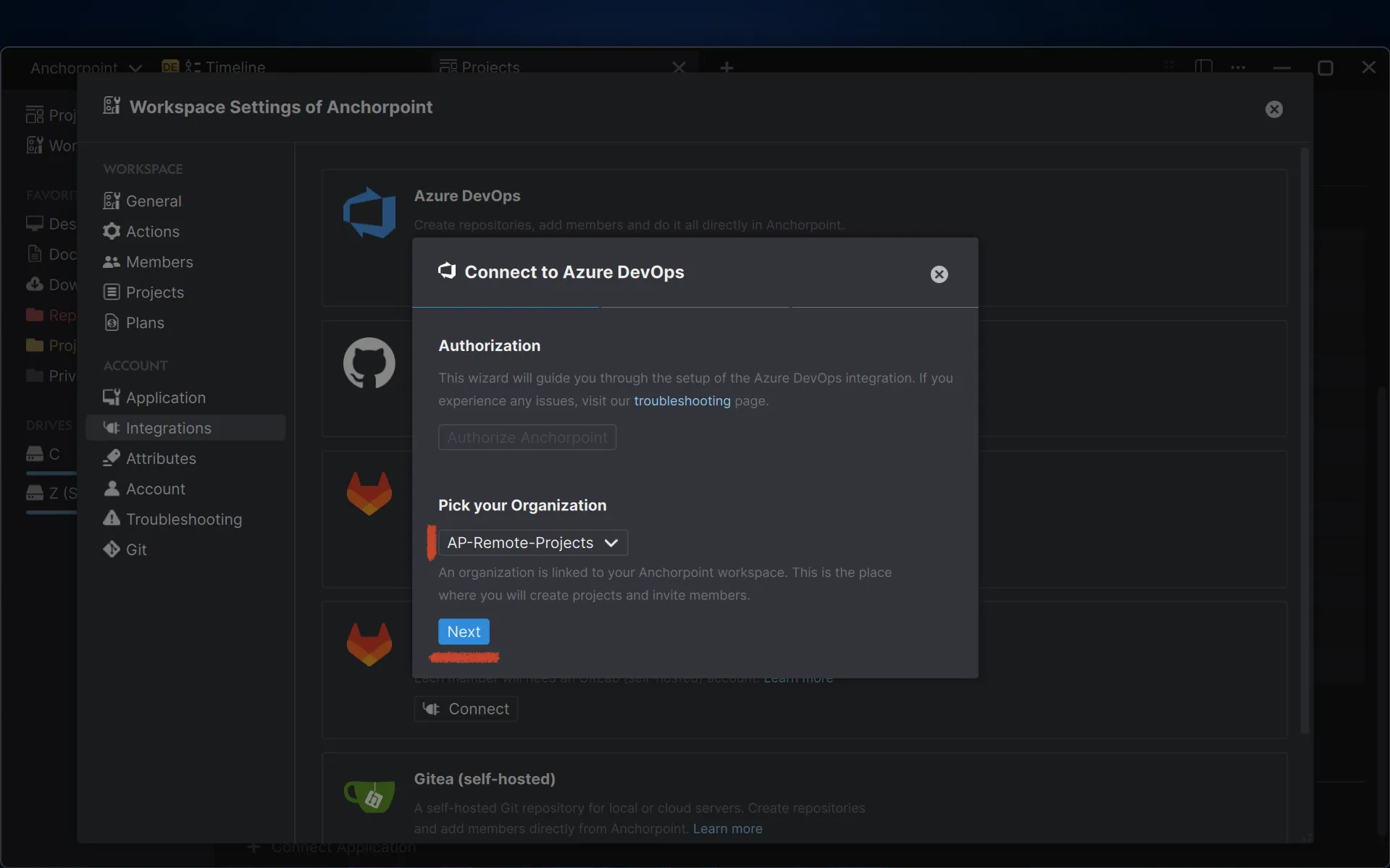
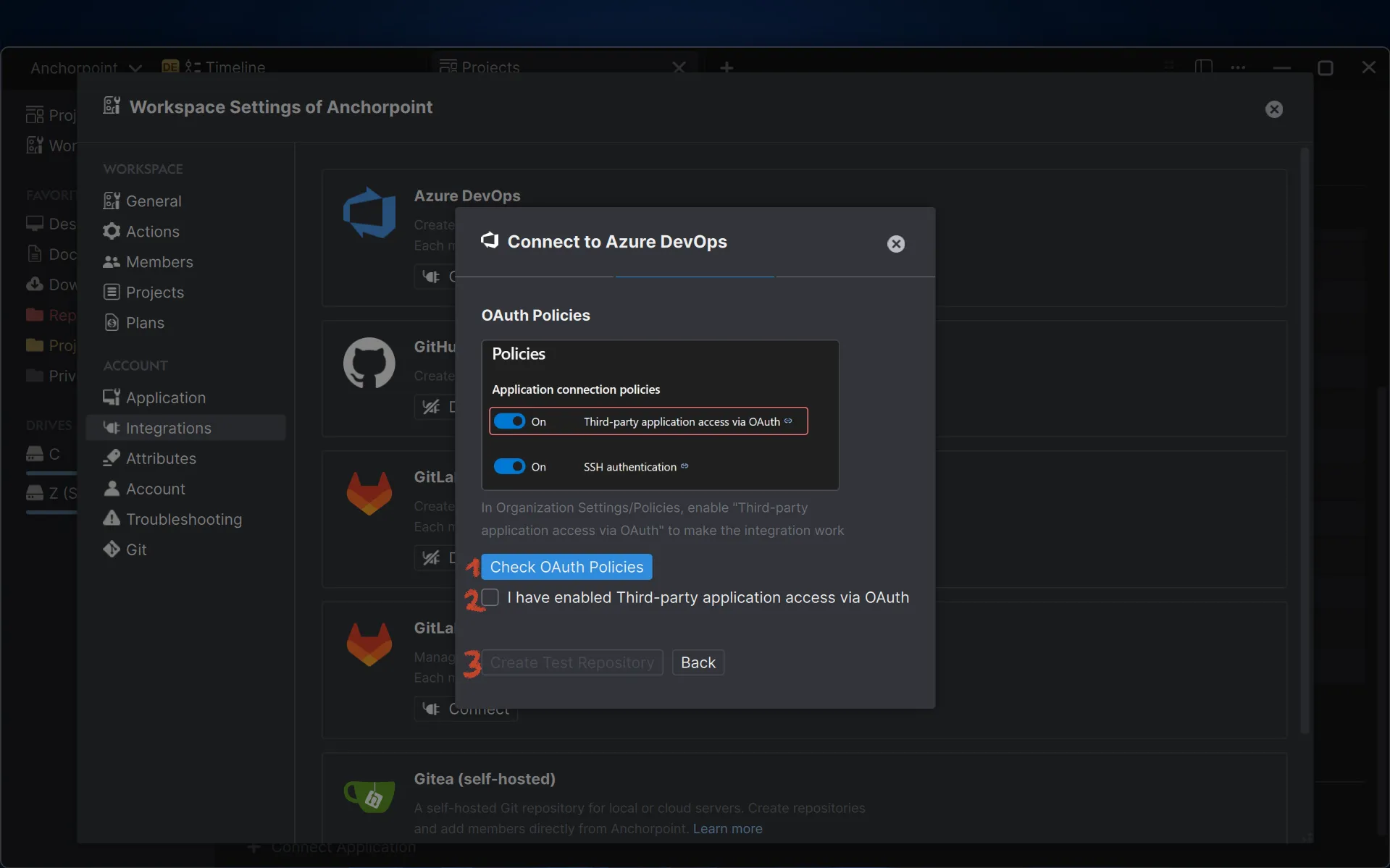
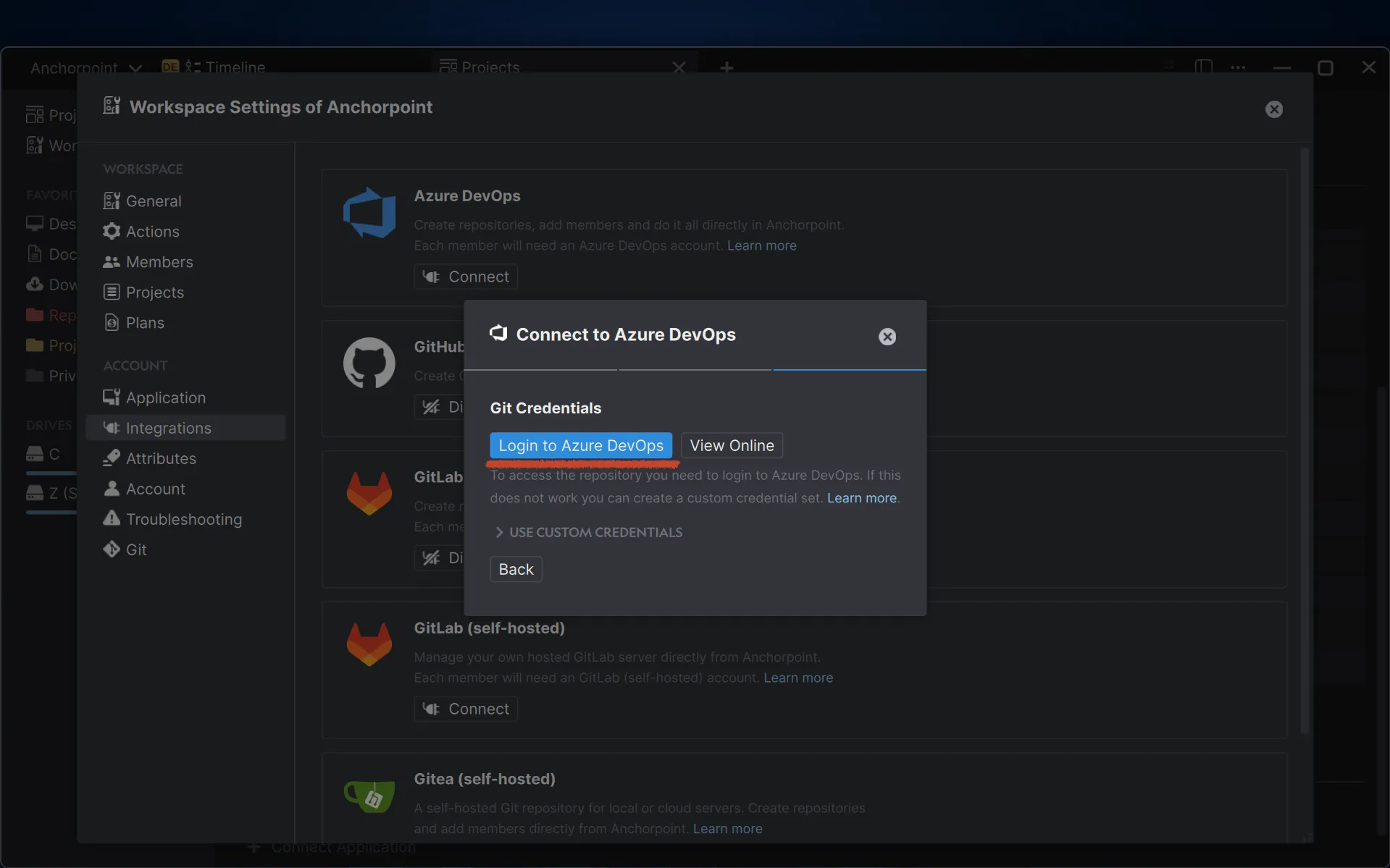
During the Azure DevOps setup, you might face some common issues like login difficulties. These can usually be resolved by selecting the Use custom credentials option and following the provided steps.
Open Anchorpoint and create a new project. Choose the local project folder on your hard drive. Once set up, Anchorpoint will automatically begin syncing with Azure DevOps.
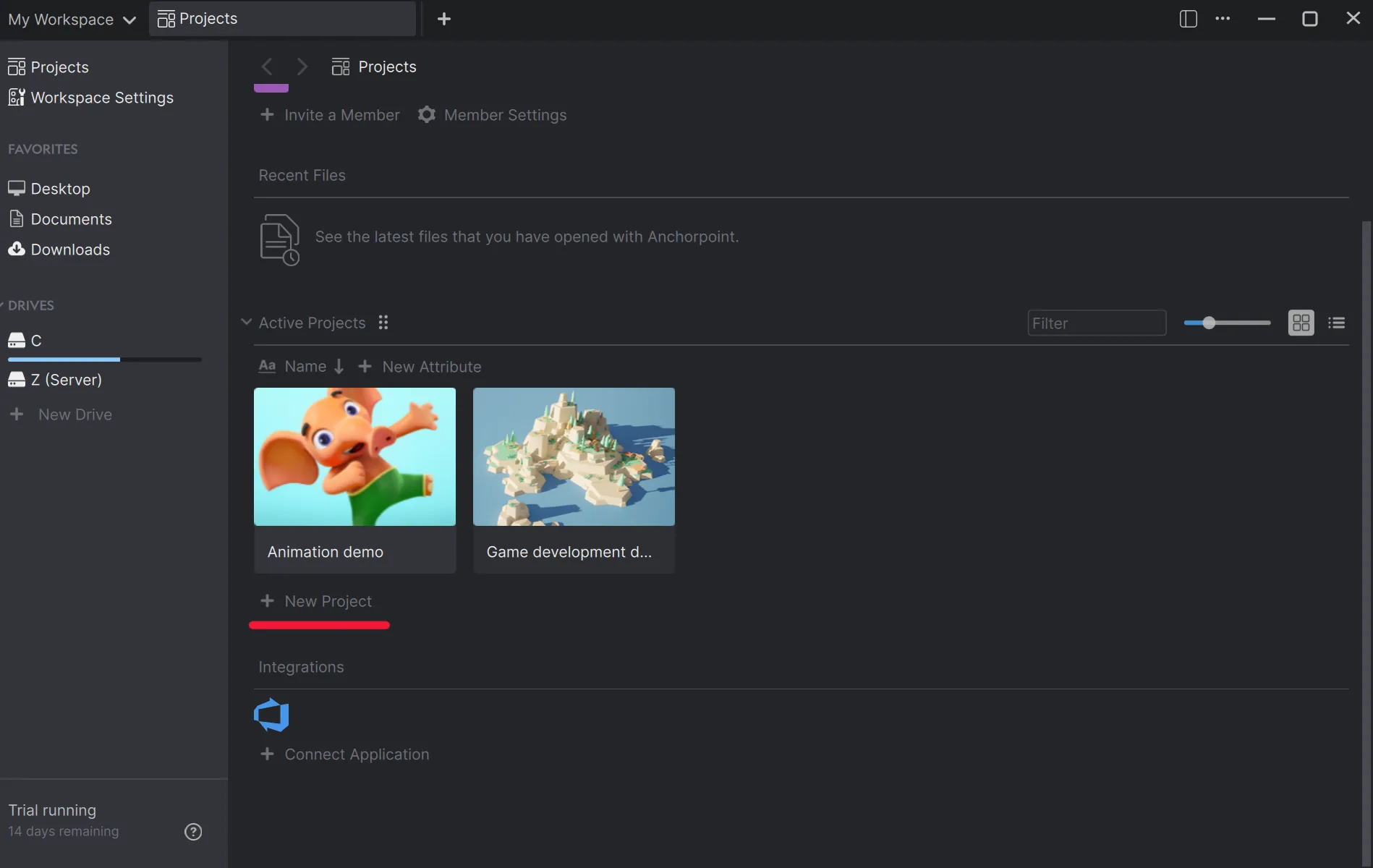
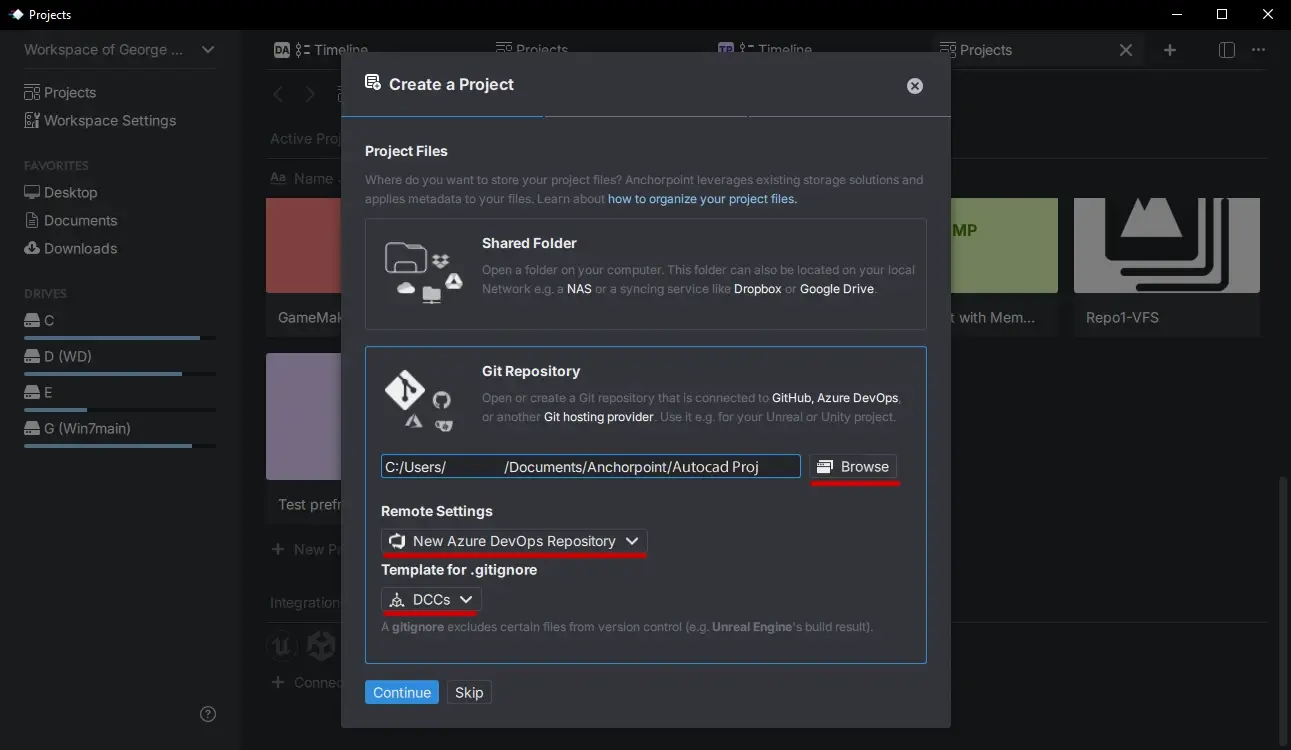
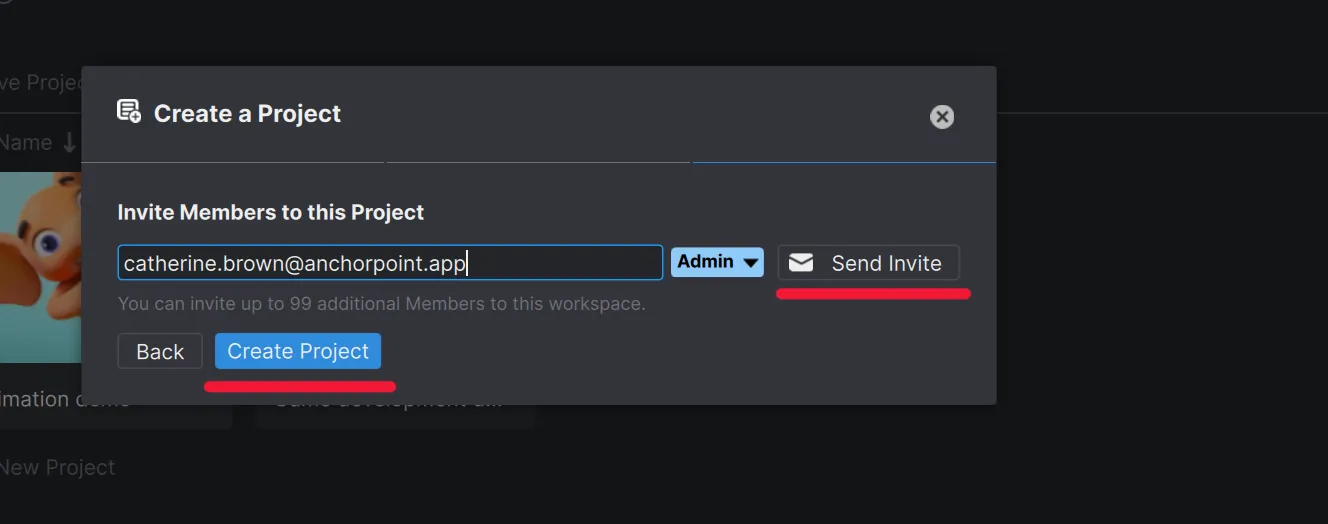
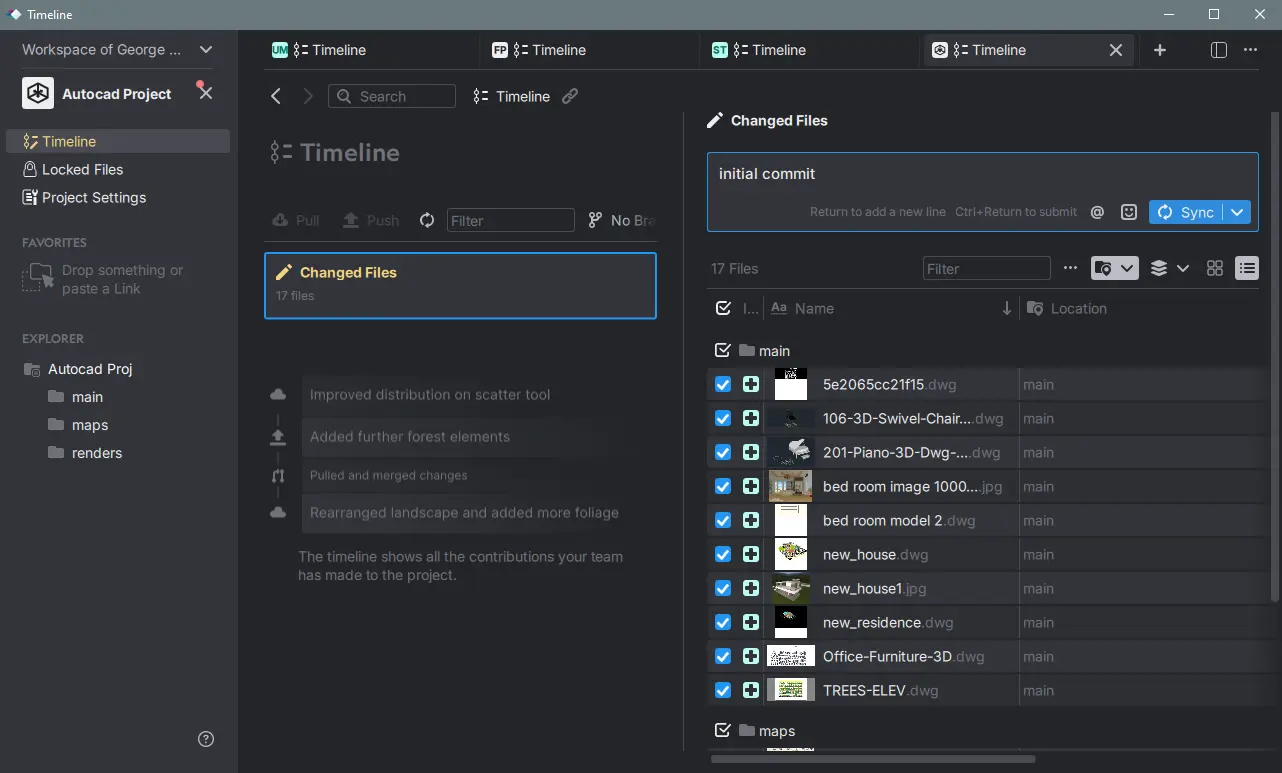
Uploading your AutoCAD project is straightforward. When Anchorpoint detects uncommitted changes in your project folder, it will prompt you to enter a message, think of this as a checkpoint description. Once you click 'Sync', Anchorpoint will push your files to Azue DevOps using Git LFS, ensuring your large 2D/3D assemblies are handled efficiently without slowing down your repository.
The .gitignore file helps exclude unnecessary files such as build outputs, temporary CAD files, or the DerivedDataCache. In this workflow, a tailored .gitignore file named DCCs is used, optimized specifically for managing digital art assets.
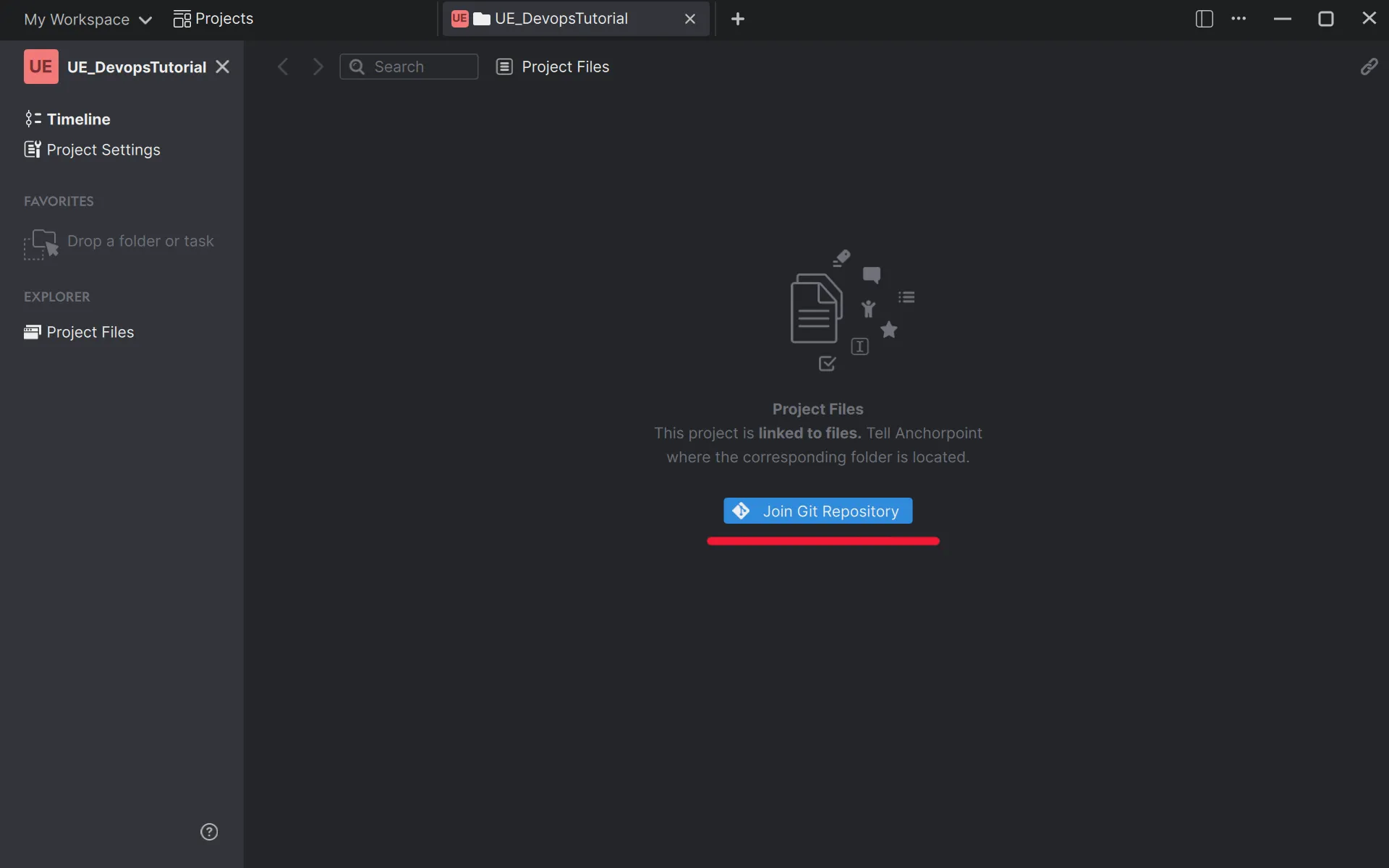
All team members must have active accounts for both Azure DevOps and Anchorpoint. Once you invite them to the project, they'll receive a notification. They'll need to select an empty folder on their system, which Anchorpoint will use to download the project from Azure DevOps.
This type of version control system simplifies the process: instead of saving multiple incremental files, you can work continuously and push updates directly to the cloud. Although it may take some time to adjust, this method enhances efficiency, keeps your file structure clean, and streamlines collaboration.
The daily process is simple:
Anchorpoint handles the heavy lifting, automatically downloading team updates and uploading your modifications every time you sync.
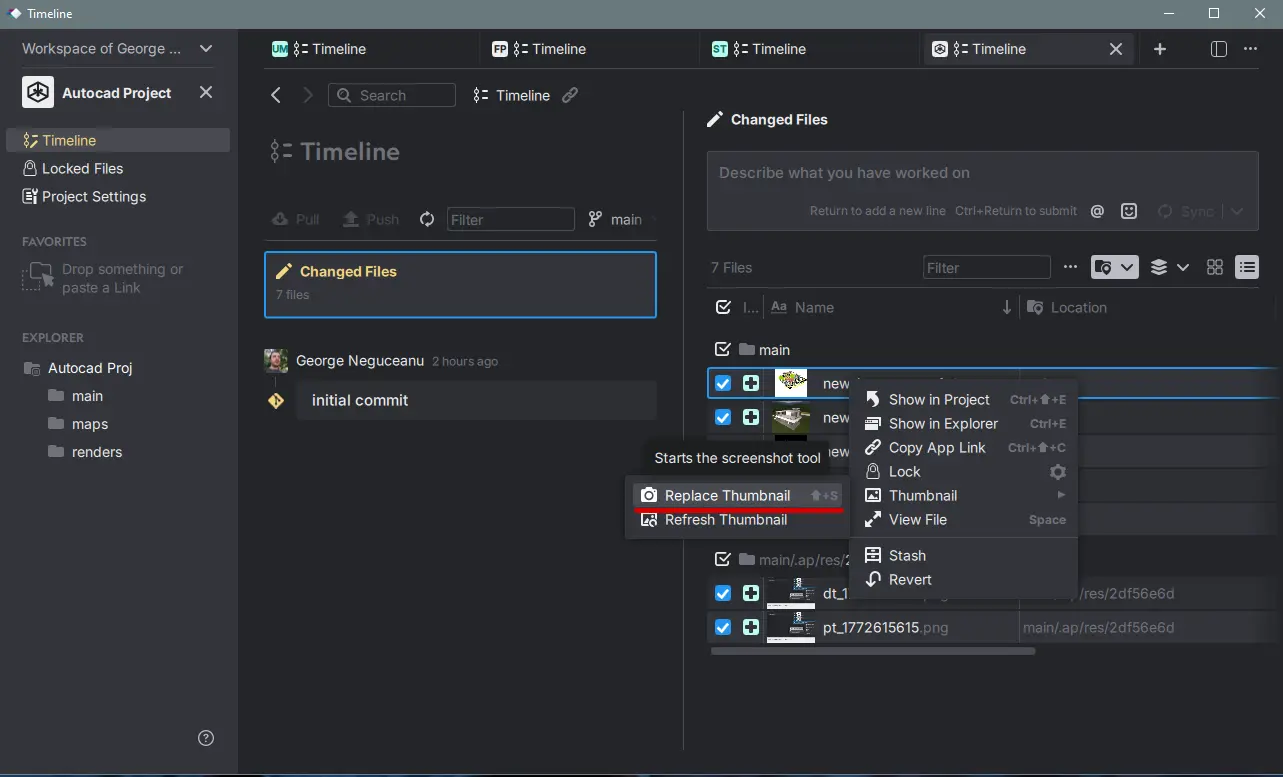
You can easily customize file previews in Anchorpoint. After syncing your file, open your image or viewport and select Replace Thumbnails by right-clicking the file in Anchorpoint. Drag your cursor over the area you want to capture to set the new image. If you need to redo it, simply right-click the file, choose Refresh Thumbnails, and try again. Don’t forget to sync your project after applying changes.
Yes. While standard Git might require extra configuration for large binary files, version control tools like Anchorpoint automatically configure Git LFS (Large File Storage) for your AutoCAD projects. This ensures that your .dwg files are handled efficiently without slowing down your repository, allowing you to manage projects that can scale to terabytes of data.
Anchorpoint includes a dedicated file locking system specifically designed for binary assets like AutoCAD drawings. Since .dwg files cannot be merged like code, you can lock a file to tell your team you are working on it. The system is optimized for speed and can lock 1,000 files in under a second to prevent any accidental overwrites.
No. Anchorpoint is designed for non-technical users such as artists and engineers who want to focus on their work rather than the production pipeline. It simplifies version control into a visual experience where creating a "Git commit" is as simple as making a checkpoint for your project. You don't need to be a DevOps expert. At the same time, Git commands are also available for those crafty techs, if needed.