Learn how to effectively use Git version control with FreeCAD. This guide includes steps on how to set up your first repository on GitHub with Anchorpoint.
George Neguceanu
22 Apr 2026
Updated on
22 Apr 2026
9
min read
Content
If you’ve spent any time in the world of 3D engineering, chances are you've used FreeCAD. It’s an incredible parametric 3D modeling program that lets you design everything from replacement parts for your 3D printer to complex mechanical assemblies. FreeCAD is powerful and free. However, it can get a bit messy without version control when your project grows from a single part to a complex system.
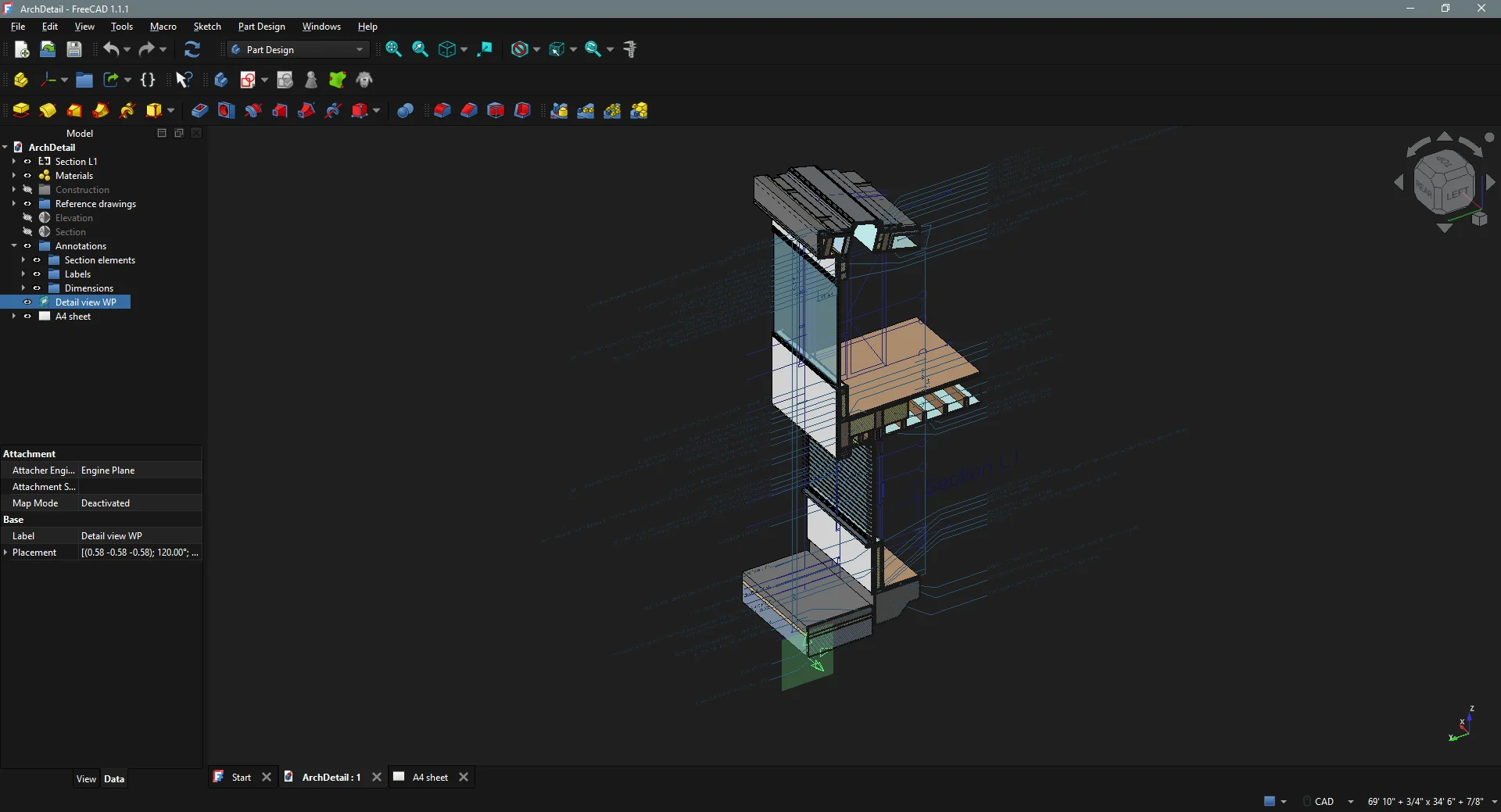
A CAD project created with FreeCAD
Working in FreeCAD often requires a lot of trial and error. You change a constraint or tweak a sketch, and suddenly, the entire model breaks. Our usual "safety net" is simply saving a new version of the file, which leads to a folder full of names like "model_v1.FCStd," "model_v2.FCStd," and the dreaded "model_final_fixed.FCStd." Fortunately, there’s a better way to handle this chaos.
Why you actually need version control
Think of version control as a time machine for your project. Rather than duplicating files each time you reach a milestone, you create a Git commit. This commit acts as a checkpoint that allows you to return to it without losing all your progress.
For teams, version control solves the "who did what?" headache. It handles:
File distribution: Ensuring everyone on the team has access to the correct assets to do their work.
Communication: Providing the information needed to review an asset before it's integrated into the final product.
Discoverability: Making it easy to find specific assets even as project complexity grows.
Project history: Since each commit contains a message, you get a real-time history of your project, who did what and when.
What is Git?
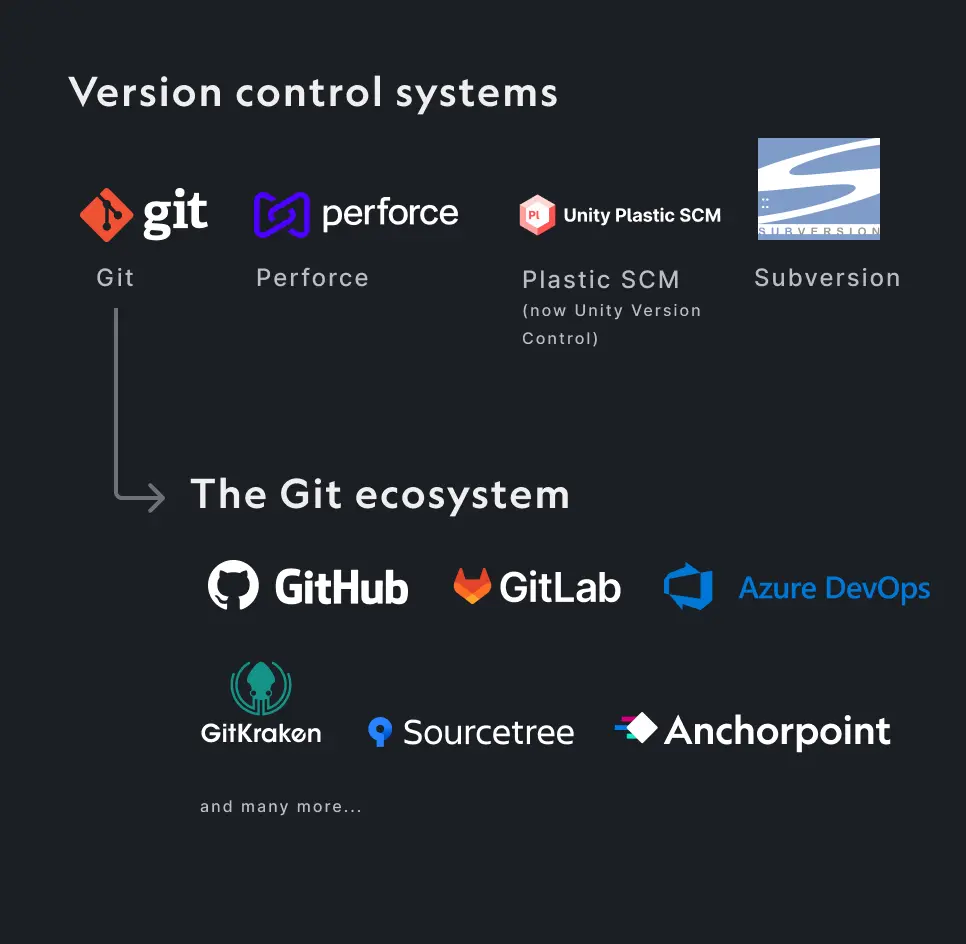
Git is a one of the most popular version control system that shares functionality with tools like Perforce, SVN, and Unity Version Control. Its widespread adoption is driven by its open-source framework and a massive, supportive ecosystem that includes hosting platforms like GitHub, GitLab, and Azure DevOps, alongside user-friendly clients such as Anchorpoint, SourceTree, Fork, and GitHub Desktop. For engineering teams, Git significantly enhances productivity through distributed collaboration, enabling developers to work autonomously before merging their contributions into a unified codebase.
Popular version control systems in 2026
Mastering Git with Anchorpoint
When people think of Git, they often picture software developers writing lines of code. However, Git is also a powerful tool for managing assets in game development, animation, and visualization pipelines.
Version control solutions like Anchorpoint are compatible with Git and are designed for people who care about their work/models more than the terminal commands.
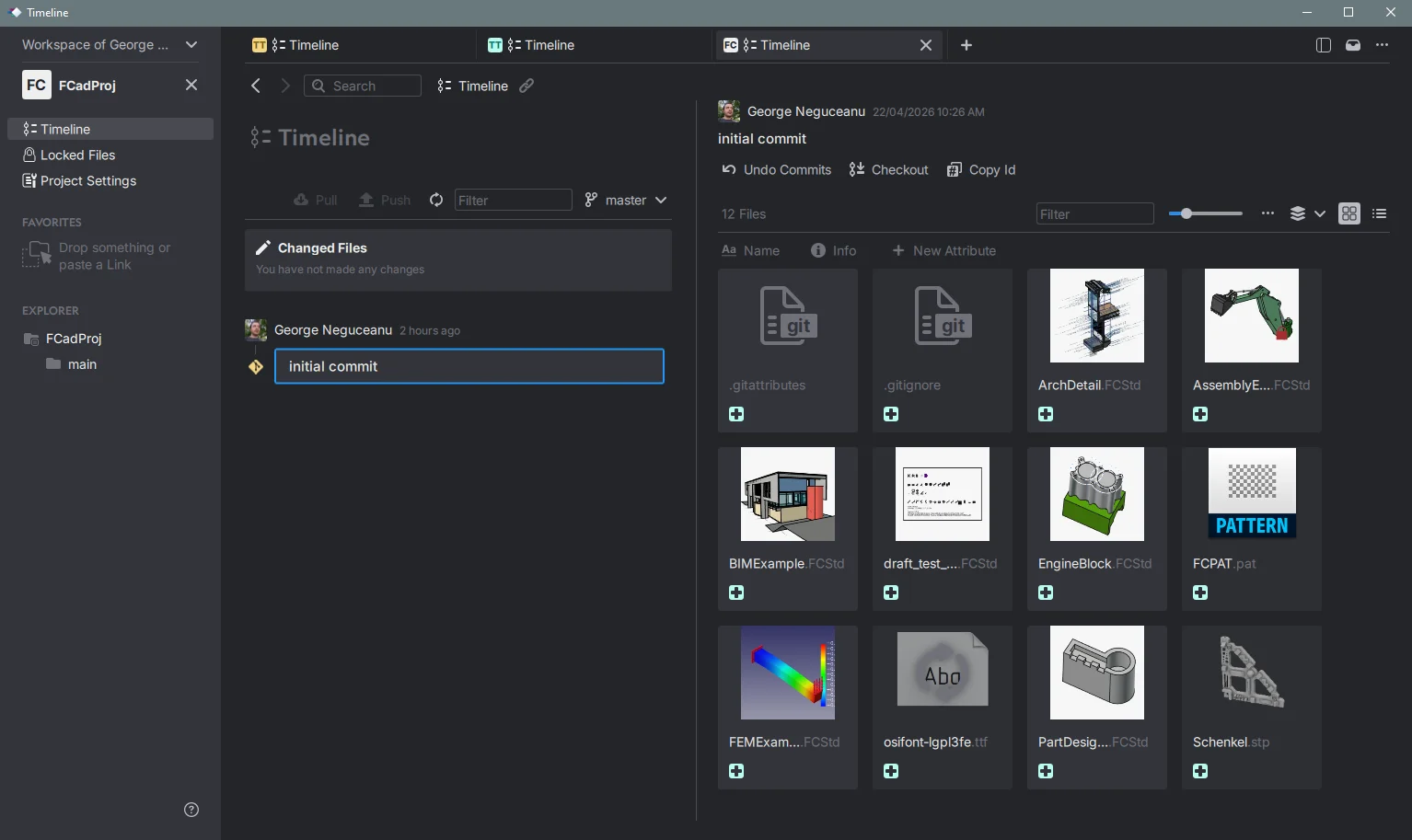
A FreeCAD project managed with Anchorpoint
Here’s why Anchorpoint can be a great fit for your FreeCAD workflow:
It’s 100% Git, but User-Friendly
Anchorpoint isn't just a Git client; it’s a solution that simplifies the tech for non-technical users while keeping the power of Git under the hood. It works with existing Git servers like GitHub, GitLab, Azure DevOps, or self-hosted solutions.
High-Speed File Locking
FreeCAD files are binary, meaning two people can’t really "merge" their changes into the same file at the same time. Anchorpoint solves this with a file locking system that can lock 1,000 files in under a second. This prevents "edit conflicts" before they even happen.
No More Configuration Nightmares
Git usually struggles with large binary files unless you spend hours configuring Git LFS (Large File Storage). Anchorpoint handles binary files without prior configuration, making it a "plug-and-play" experience for artists and engineers.
Zero Lock-in
You own your data. Being compatible with just about anything related to Git but also cloud services like Dropbox, Google cloud, with Anchorpoint you don't have to worry about your files being trapped in yet another proprietary cloud.
Git for CAD Projects
Collaborate on your CAD project using the simplest, Git-based version control solution for artists and engineers.
1. A cloud provider such as GitHub or Azure DevOps
GitHub: One of the most popular Git providers since it offers a Free and Pro plan, and it has a large file limit(binary) of 2GB (Free), while the Team plan allows files up to 4GB and the Enterprise plan up to 5GB. GitHub Git LFS offers users 10 GB of free storage and bandwidth. Any additional usage is charged at $0.07 per GB for storage and $0.0875 per GB for outbound data transfer.
Azure DevOps: An alternative for large binary files is Azure DevOps which provides a more flexible Git LFS storage option at no extra cost. Unfortunately it suffers from multiple problems with permission and accounts, especially when you log in, and it might fail to even recognize your repo's permission in some instances.
Your own server: For complete control over your files, you can set up your own Git server.
2. A desktop application such as Anchorpoint, GitHub Desktop or Sourcetree
In this tutorial, we will use Anchorpoint with GitHub since it is ideal for artists and engineers and comes with all the configurations necessary for 3D CAD projects, and can also generate thumbnails of the models right from the start.
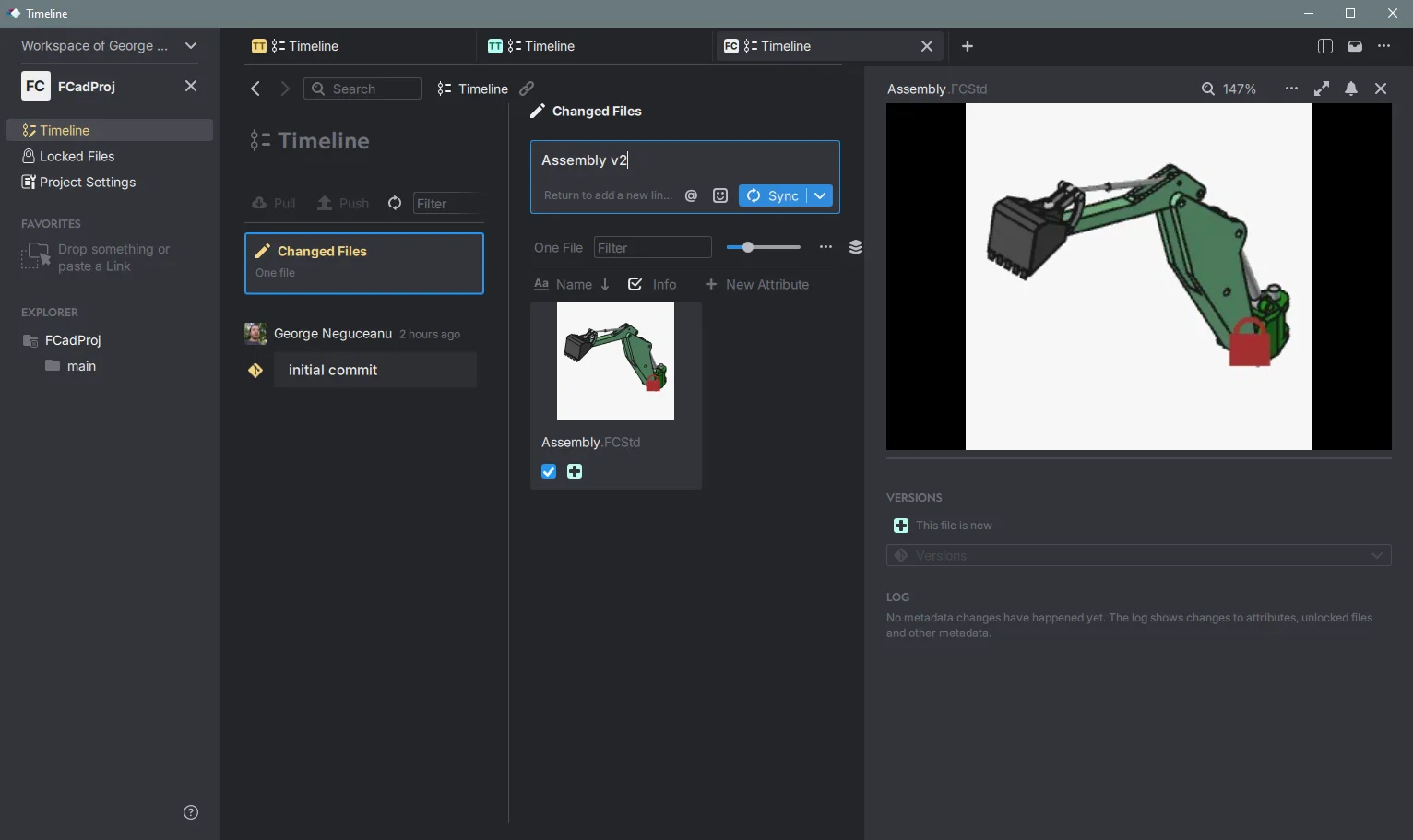
Committing / Syncing a new version of a model from a FreeCAD project in Anchorpoint
Note: Anchorpoint free version only supports GitHub and local repos, but you can start a free 14 days trial to use all the features, to see if the client is right for you. (Click on Workspace Setting on the Top Left navigation bar > Plans > Click Free 14-Day team trial)
How to use FreeCAD with Git, Anchorpoint and GitHub
Getting Started with GitHub and Anchorpoint Integration
For those that prefer video format, we also have a guide on youtube. Even if it is for Unity, it follows the same steps and it easy to watch and follow. Check below.
There are not that many differences in setting up the integrations in Anchorpoint, so just follow the on-screen instructions. You only have to do it once anyway for each service, cloud provider.
Setting up GitHub
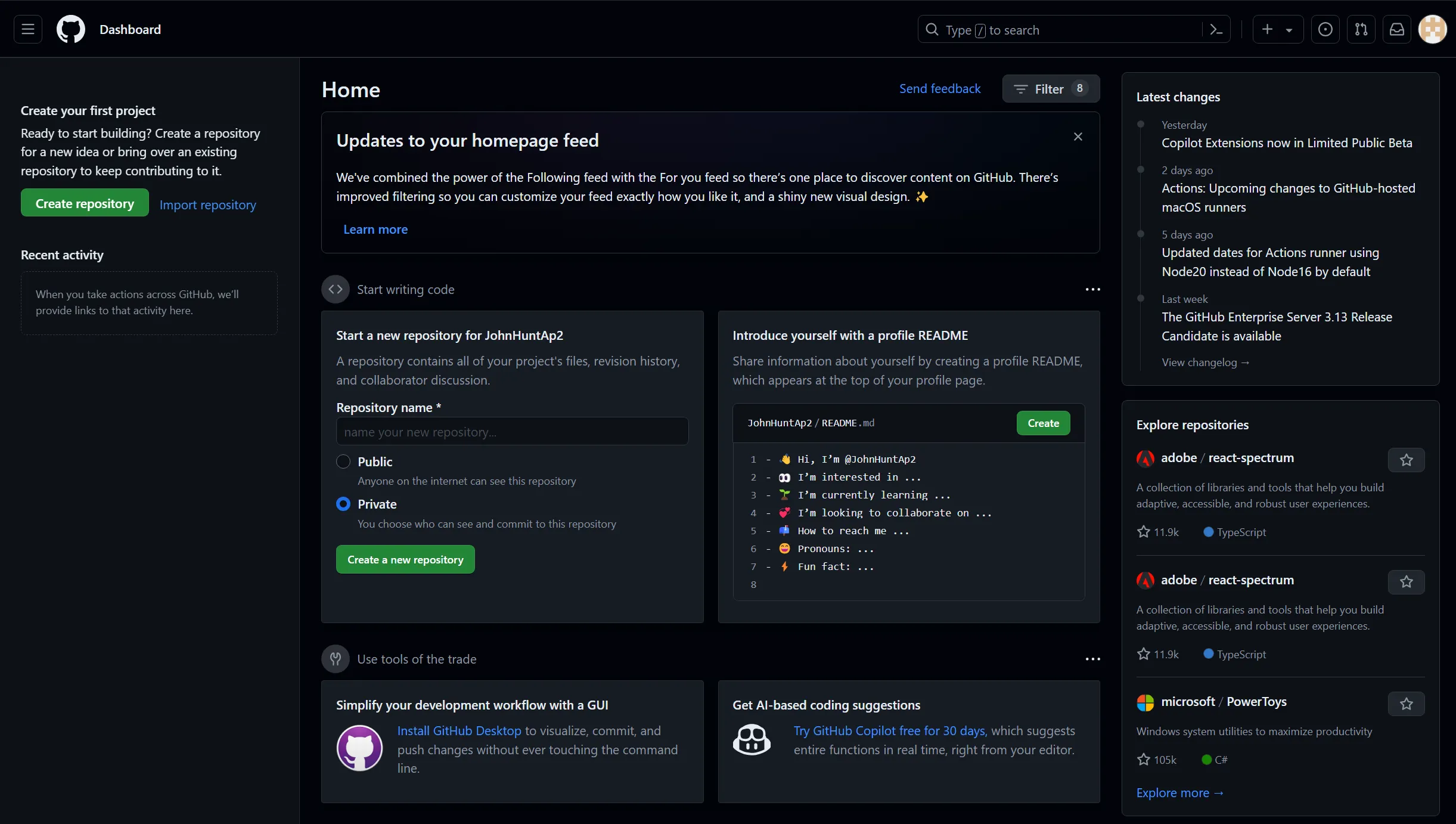
Setting up GitHub requires just a few clicks. Go to GitHub.com and create a free account.
Go to GitHub.com and create a free account
Connecting GitHub to Anchorpoint
To link GitHub with Anchorpoint, follow the setup instructions outlined below. If you plan to work offline, you can opt for the Shared Folder method when initiating a new project.
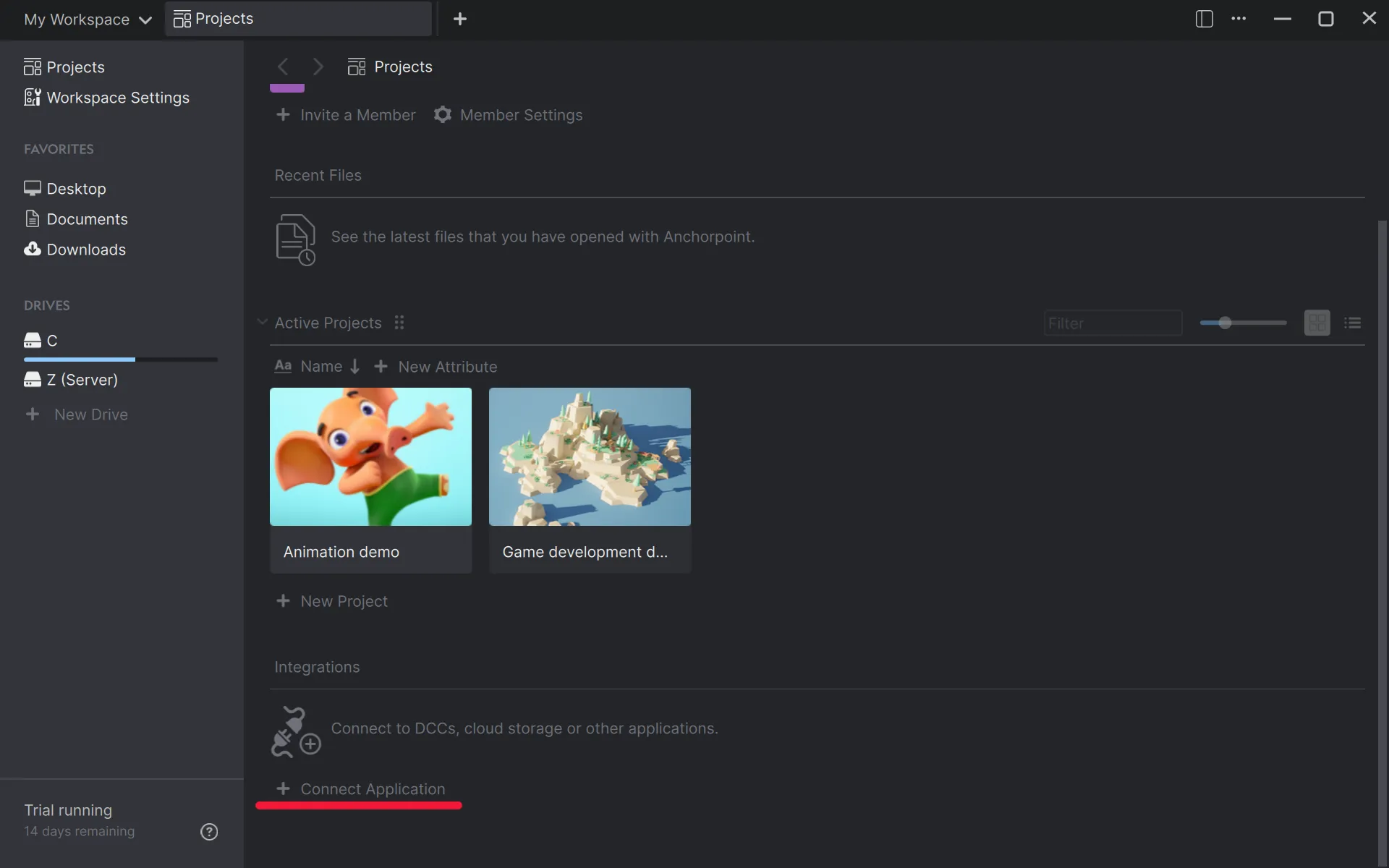
Scroll down to the integration section and click on "Connect Application". If you don't see this page, just create a new tab.
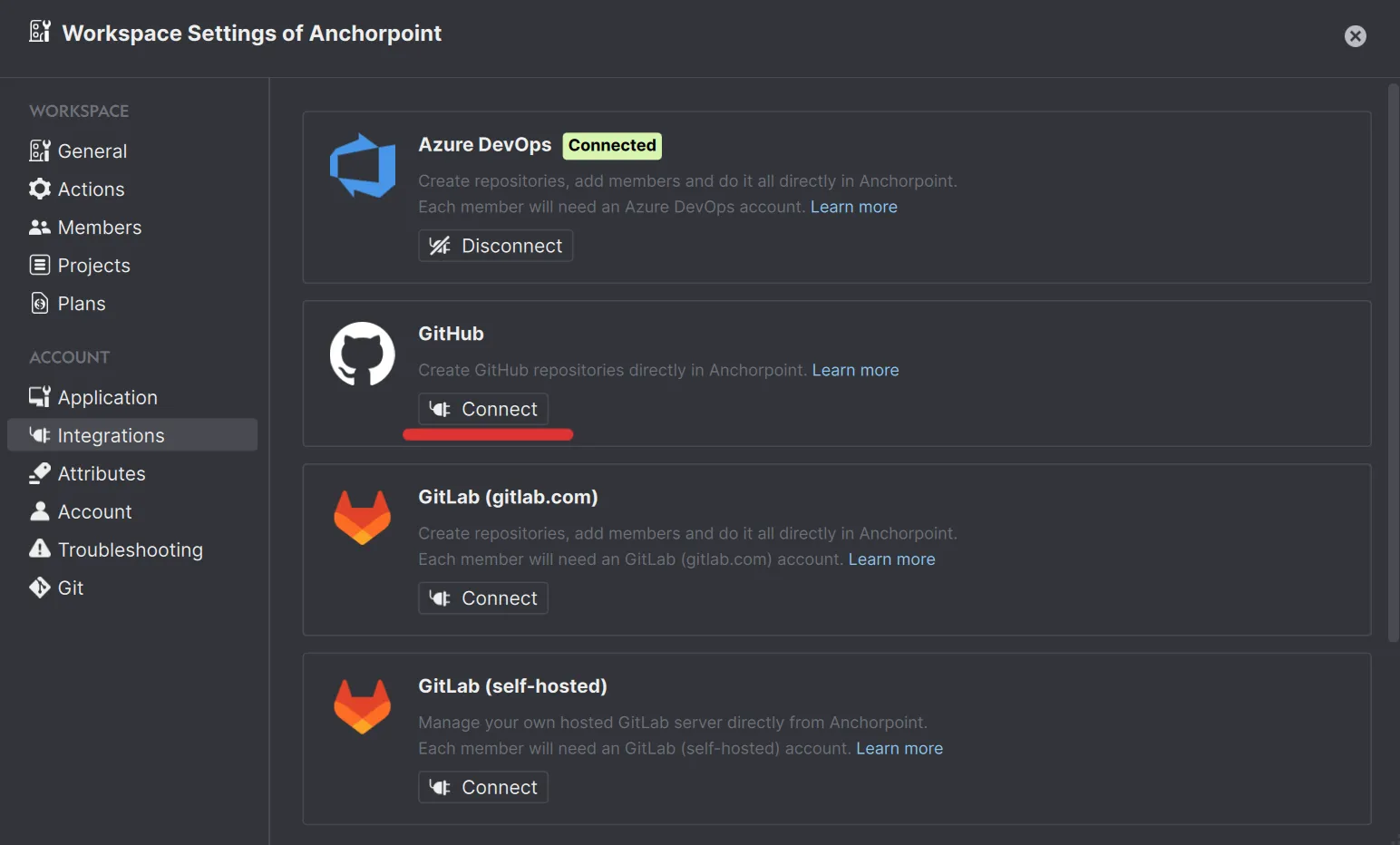
Look for GitHub and click on "Connect" and follow the instructions on the screen.
You must authorise both '"Anchorpoint Software" and "Git Ecosystem" when asked. This gives Anchorpoint permission to create GitHub repositories in your account on your behalf. The final step is to test your integration, after which you should be ready to go, this is needed to be done only once.
If everything is fine, it should be marked as "Connected". You can close this popup now.
Creating a Project in Anchorpoint
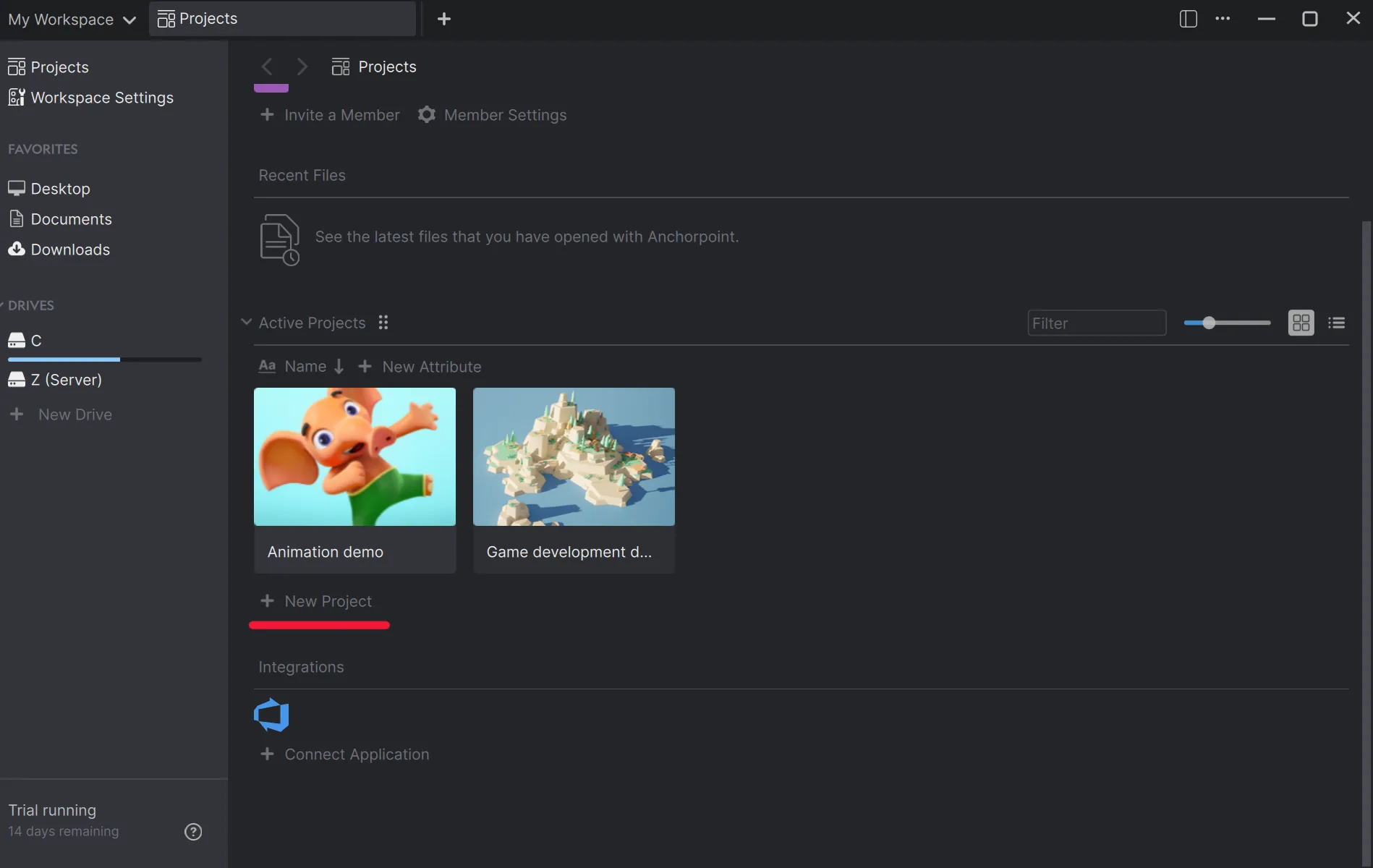
Open Anchorpoint and create a new project. Choose the local project folder on your hard drive. Once set up, Anchorpoint will automatically begin syncing with GitHub.
Click the "New Project" button
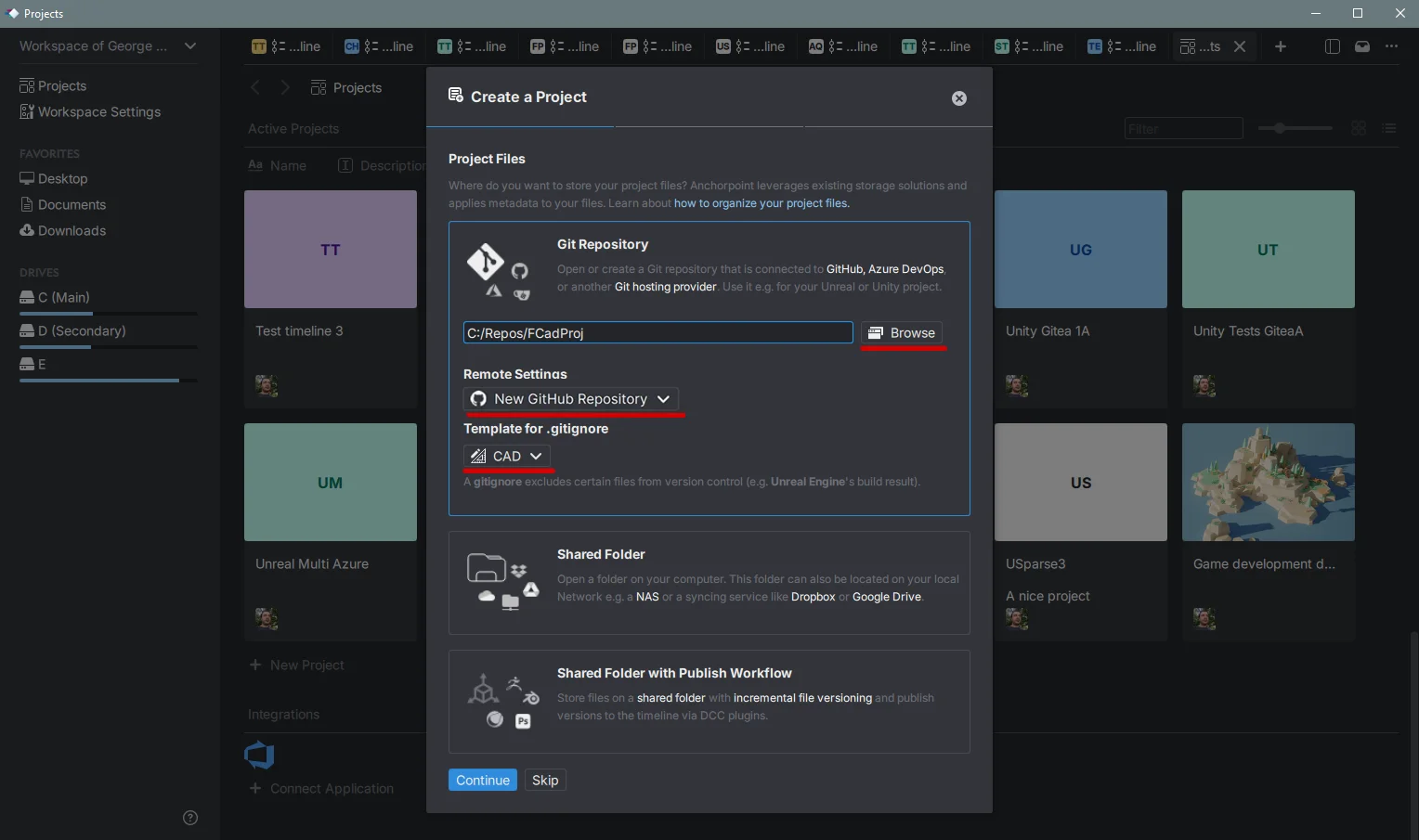
Browse to your folder, pick "New GitHub Repository" on Remote Settings and set the .gitignore to "CAD"
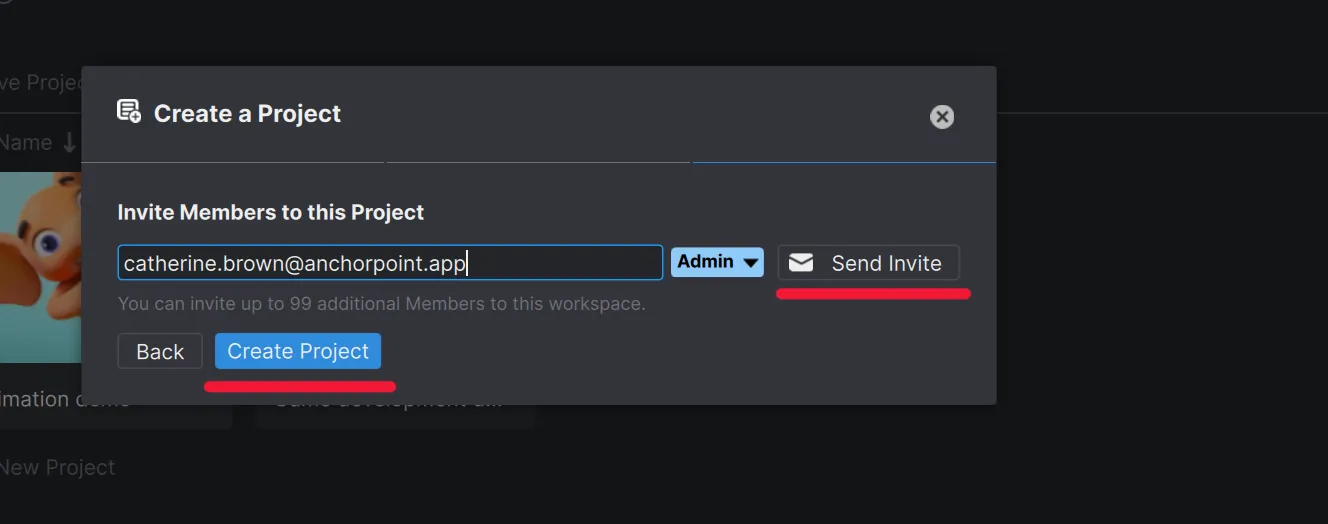
Lastly, invite team members you want to collaborate with, or leave it blank if you're working solo. Each member must have an GitHub account.
Uploading your FreeCAD Cad project to GitHub
Uploading your FreeCAD project is straightforward. When Anchorpoint detects uncommitted changes in your FreeCAD folder, it will prompt you to enter a message, think of this as a checkpoint description. Once you click 'Sync', Anchorpoint pushes your files to GitHub using Git LFS, ensuring your large 3D assemblies are handled efficiently without slowing down your repository.
Your history will initially be empty. Click Timeline, then Changed files to see a list of your project files. Anchorpoint recognizes Art and 3D files, displaying the correct name and thumbnail. Add a meaningful message and click "Sync".
Managing Project Files with .gitignore
The .gitignore file helps exclude unnecessary files such as build outputs, temporary CAD files, or the DerivedDataCache. In this workflow, a tailored .gitignore file named CAD is used, optimized specifically for managing digital art assets.
Team Collaboration Setup
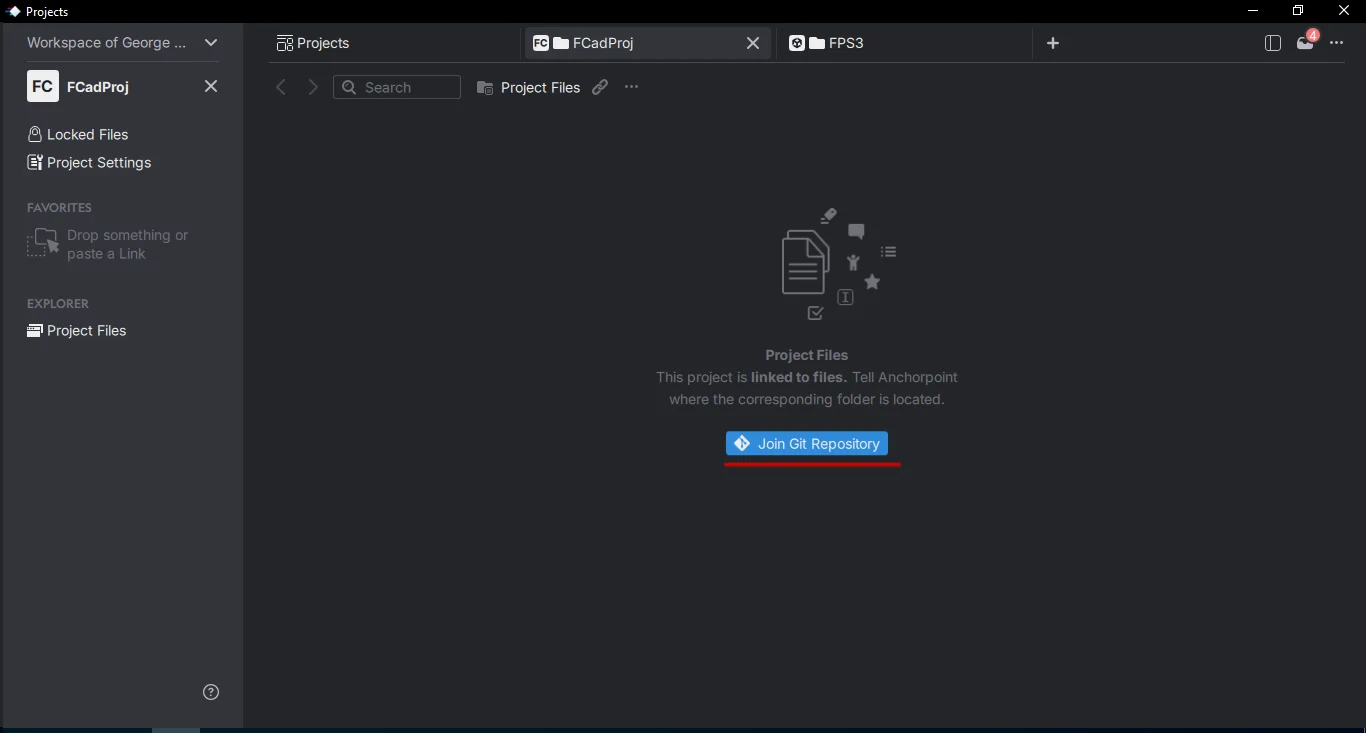
All team members must have active accounts for both GitHub and Anchorpoint. Once you invite them to the project, they'll receive a notification. They'll need to select an empty folder on their system, which Anchorpoint will use to download the project from GitHub.
Once team members are invited to the Anchorpoint project, they can download all project files from GitHub. The first time they do this, they'll also need to connect Anchorpoint to GitHub by entering their GitHub credentials.
Version Control Workflow
This type of version control system simplifies the process: instead of saving multiple incremental files, you can work continuously and push updates directly to the cloud. Although it may take some time to adjust, this method enhances efficiency, keeps your file structure clean, and streamlines collaboration.
Your daily workflow becomes:
Work in FreeCAD
Sync changes
Continue working
Sync updates
Repeat
With each sync, Anchorpoint checks for updates from other team members, downloads them, and then uploads your latest changes.
Custom Thumbnails
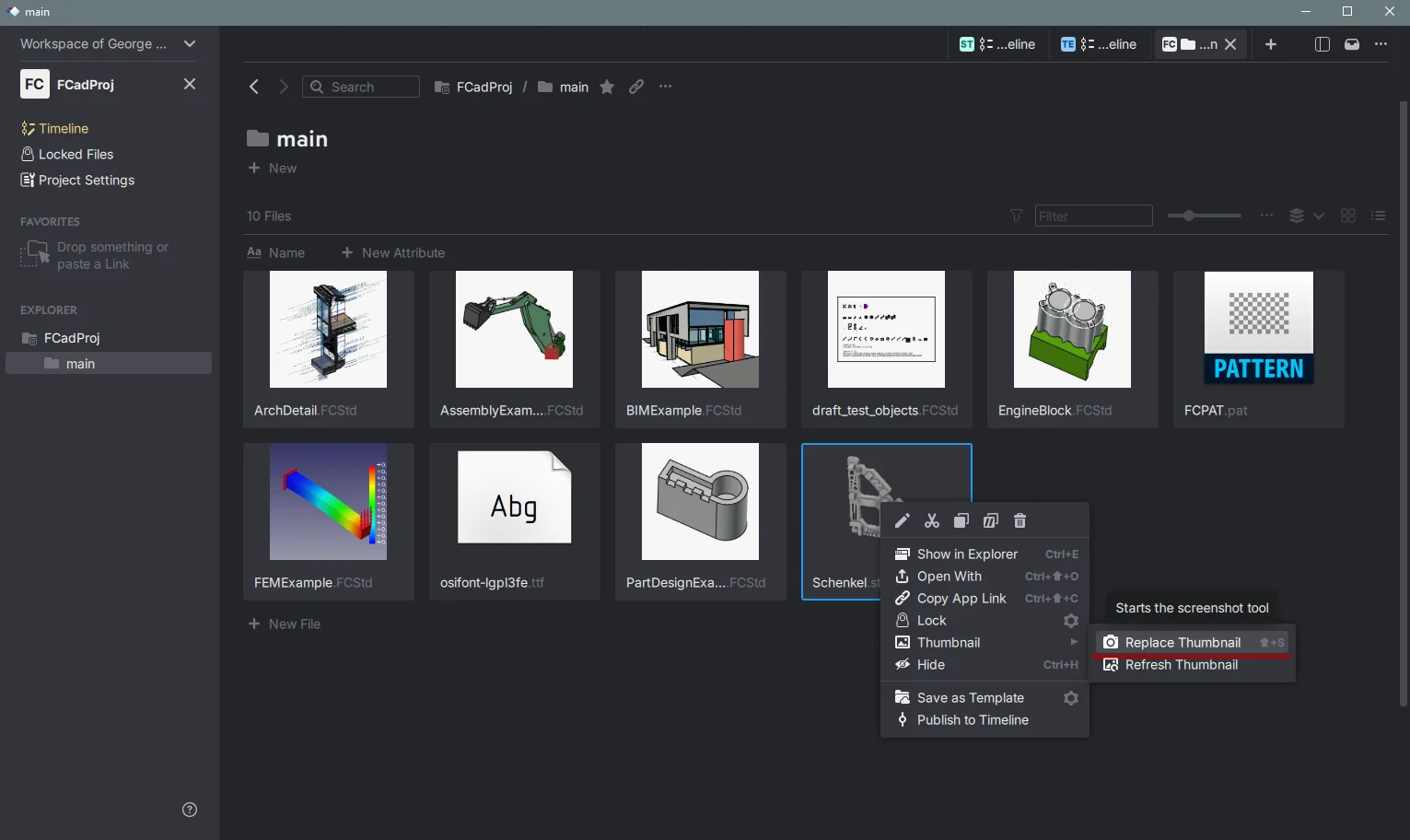
One of the many extra features of Anchorpoint is Custom Thumbnails, which allows you to right click on an art file and replace its thumbnail. To do this, first sync/commit your new or changed files, open the desired image or tool/engine viewport, switch to Anchorpoint, right-click the desired art file, and click Replace Thumbnails. Drag over the desired view and the thumbnail will be replaced. If you failed the first time, right-click on the file again, and select refresh the thumbnails, and start the thumbnail replacement again. Sync files when you are done.
Replacing the thumbnail of a .FCSd model in Anchorpoint
FAQ
How does the file locking system prevent lost work?
Since FreeCAD files are binary, they cannot be "merged" like standard code; if two people edit the same file, someone's work will likely be overwritten. Anchorpoint’s file locking system solves this by automatically locking files when they are edited. This instantly notifies the rest of your team that you are working on that specific asset, preventing them from creating conflicting versions and losing progress.
Where are my FreeCAD files actually stored?
Following a strict "no lock-in" approach, Anchorpoint does not host your files; instead, they are stored locally on your computer and synced to your chosen Git provider, such as GitHub or a self-hosted server. This ensures you maintain full control over your production data without it being trapped in a third-party cloud.
Do I need to learn complex Git commands to use Anchorpoint with FreeCAD?
No, Anchorpoint is a version control solution designed specifically for non-technical DevOps users, such as artists and engineers, who want to work with minimal interaction with the production pipeline. With features like auto configuration for .gitignore and .gitattributes for binary files, Anchorpoint lets you focus on your work instead of the DevOps side of things, unless you really need it or want to go deeper into features and configurations.