Teamcenter alternatives in 2026
Discover our top five Teamcenter alternatives, featuring the pros and cons of each and transparent pricing models for hardware and 3D creators.
July 6, 2026
6
min read

TL;DR:
In the world of 3D engineering and product design, Solidworks is a powerhouse. However, as any design team knows, creating incredible 3D models is only half the battle. The real challenge lies in managing the enormous amount of files that accompany them.
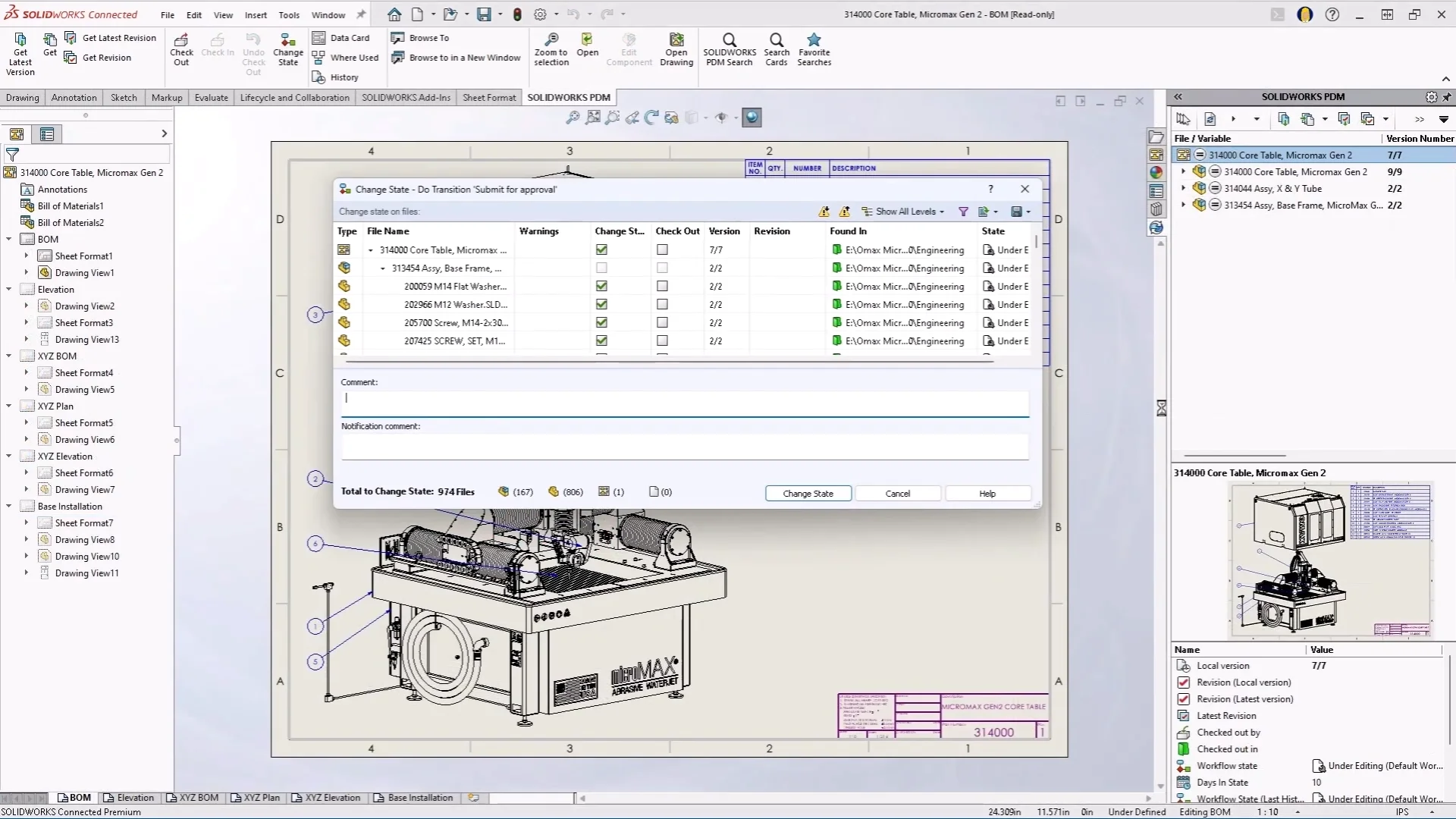
Dassault Systèmes traditionally solves this problem with Solidworks PDM (Product Data Management). PDM acts as a centralized vault that handles file check-ins and check-outs and tracks versions. Although PDM is powerful and integrated, it often comes with a high price, rigid database requirements (such as Microsoft SQL Server), and a difficult learning curve for IT administrators.
Enter Git and Git-based platforms, such as GitHub, GitLab, and Bitbucket. Git is a distributed version control system designed to track changes in source code, and it has long been considered the gold standard for software development. However, with the right setup specifically, using Git Large File Storage (LFS) Git can be a highly effective, lightweight, and cost-effective alternative for computer-aided design (CAD) collaboration. Git brings modern, cloud-first developer workflows to hardware engineering.
If you’ve ever worked on a design team without version control, then you’ve likely experienced the chaos of manual file management firsthand. Here's why dedicated version control is essential for Solidworks.
For small teams, it's tempting to simply upload their Solidworks files to a shared Dropbox, Google Drive, or OneDrive folder. Don't do it! These platforms are designed for static documents, like PDFs and spreadsheets, and they will absolutely ruin a CAD workflow for two major reasons.
Solidworks files are not self-contained. For example, an assembly (.sldasm) does not contain the parts inside it. Rather, it contains links and references to the individual part files (.sldprt). Cloud drives constantly and asynchronously sync files. If Engineer A opens an assembly and Engineer B renames or moves a part file in the cloud, the assembly links break instantly. This results in the dreaded "File Not Found" error.
Cloud drives do not have a "check out" feature for files. For example, if two engineers open the same Solidworks part at 9:00 a.m., make different modifications, and hit "Save" at 10:00 a.m., the cloud drive will simply overwrite one engineer's work with the other engineer's work or create a "Conflicted Copy" file that you have to manually stitch back together.
Think of Git as the engine under the hood, a local version control system that tracks every single change you make to your project files. GitHub, on the other hand, is a cloud-based hosting service built on top of Git. It acts as the remote hub where you store, backup, and collaborate on those files with others.
While Git is the industry giant, other version control systems exist, such as Perforce, Plastic SCM, and Subversion. Similarly, GitHub isn't your only cloud option; platforms like GitLab and Azure DevOps live in the same ecosystem and work seamlessly with Git.
To get your workflow running, you only need two components: a cloud provider to share your files, and a desktop client to transfer (push and pull) those files between your computer and the cloud.
The best platform depends entirely on your project’s specific requirements:
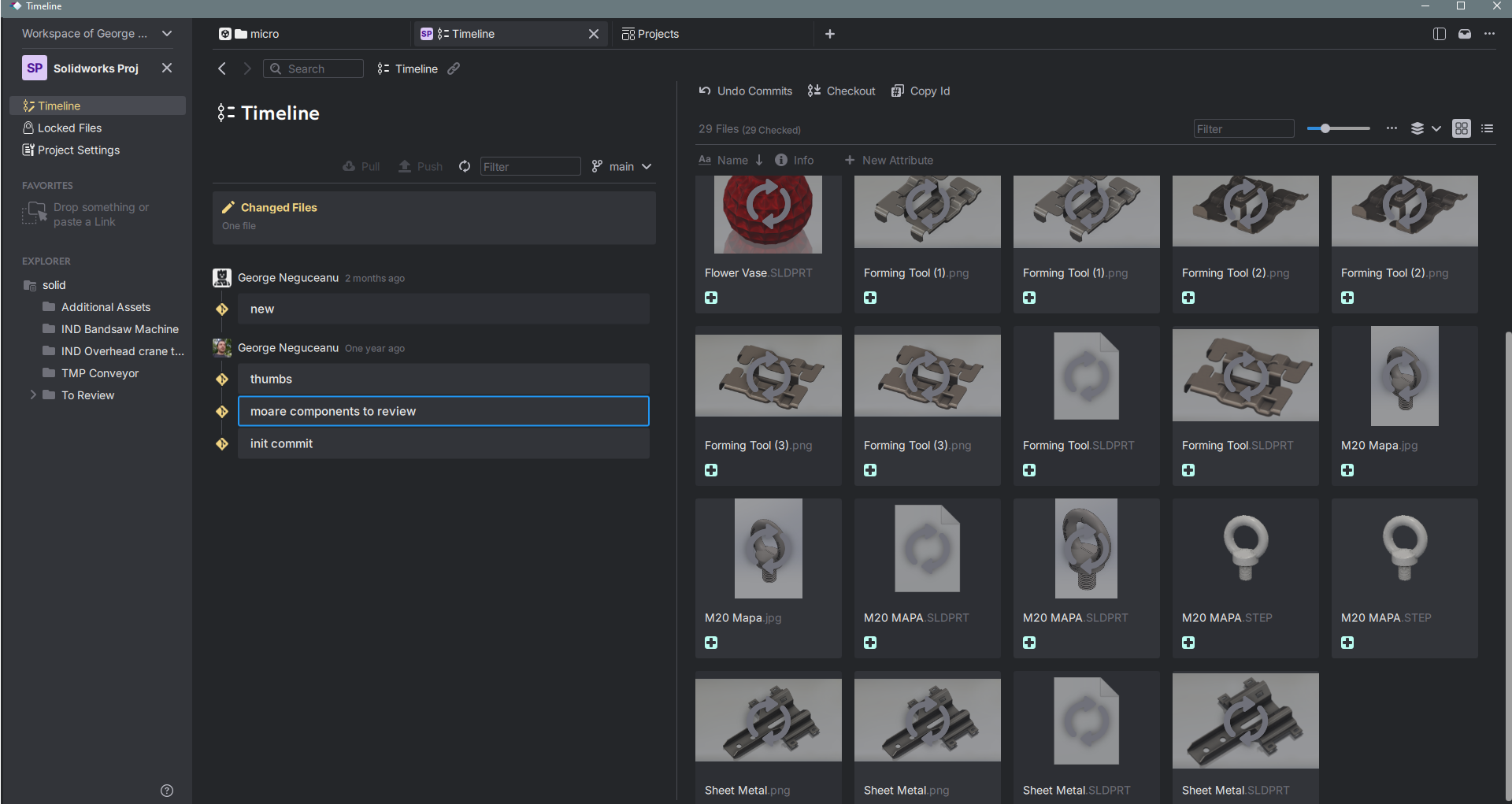
Your desktop application should match your technical comfort level:
Unlike text-based code, Solidworks files are proprietary binary files, so Git cannot "diff" (compare line-by-line) the inside of a .sldprt file. Therefore, the Git workflow for computer-aided design (CAD) relies heavily on Git Large File Storage (LFS) to handle large files, combined with a disciplined team workflow.
Here is how a typical daily workflow looks:
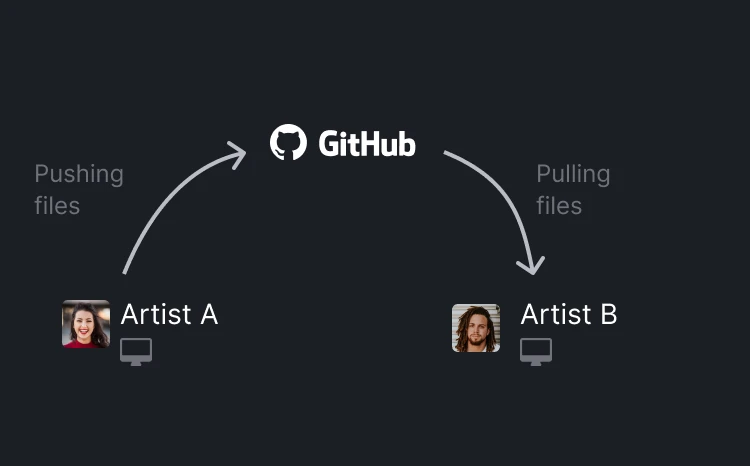
Step 1: Pull the Latest changes
Before making any changes in Solidworks, open your Git client (such as GitHub Desktop, GitKraken, or the command line) and run a pull. This downloads the latest verified state of the assembly from the remote repository to your local machine.
Step 2: Lock your files (Crucial for CAD)
Since it's not possible to automatically merge two different binary changes, you use Git LFS's File Locking feature or if you use Anchorpoint this will happen automatically once you start working on the file. You tell Git: "I am working on housing_left.sldprt. Lock it." This lets the rest of the team know that they can view the file but shouldn't try to edit it until you're finished.
Step 3: Modify in Solidworks
Open Solidworks, do your engineering magic, run your simulations, and save your work locally just like you normally would.
Step 4: Commit your changes
Once your design changes are complete and stable, open your Git client. Stage your modified files and write a commit message (e.g., "Optimized wall thickness of left housing to reduce mass by 12 g"). This creates a permanent snapshot of that moment in your local history.
Step 5: Push and Unlock
Finally, you Push your commits to the cloud repository (GitHub/GitLab) so your team can access them. Once the push is successful, you Unlock the files (Anchorpoint does this for you by default on push), freeing them up for the next engineer to work on.
A Git repository is not the file sync solution for everything. For some special cases, you will need a shared folder on a Dropbox, Google Drive, or NAS. This is how you decide what to put where.
A Git repository (or "repo") is essentially your project folder synchronized with GitHub or other Git base cloud providers.
For files that do not require strict version tracking, standard file-syncing platforms like Dropbox, Google Drive, or a local Network Attached Storage (NAS) are much better choices. These services are highly user-friendly and make it easy to share files with external stakeholders like clients, marketing teams, or QA testers.
Files that typically belong here include:
By default, standard Git struggles with large binary files because it tries to keep a history of every single version in its database, which quickly causes the repository to bloat and slow down.
To solve this, you must use Git LFS (Large File Storage). Git LFS replaces the heavy Solidworks files (.sldprt, .sldasm) inside your main Git repository with tiny pointer files. The actual heavy CAD files are stored on a separate, dedicated cloud server. When you clone or pull, Git LFS only downloads the versions of the files you actually need for your current branch, keeping your workflow fast and lightweight. Anchorpoint version control solution handles this by default, so you don't have to do heavy configuration.
No. Git is incredibly smart at merging text-based code files (if Engineer A changes line 10 and Engineer B changes line 50, Git combines them automatically). However, Solidworks files are proprietary binary files essentially compressed blobs of data.
Git cannot read inside them to merge changes. If two people modify the exact same part file at the same time, Git cannot merge them. The last person to push will get a conflict error, and one person's work will have to overwrite the other's. This is why File Locking is a mandatory rule in a CAD-Git workflow. With Git clients like Anchorpoint, file locking is enabled automatically when a user starts working on a file.
In almost all cases, yes—significantly.
Solidworks PDM requires expensive per-user licenses, a dedicated Windows Server, and often a paid Microsoft SQL Server license, plus the IT overhead to maintain it.
Git platforms (like GitHub or GitLab) offer robust free tiers or very inexpensive per-user monthly cloud pricing (usually $4 to $20 per user/month). Your only major extra cost will be buying a bit of extra data storage for Git LFS, which is incredibly cheap + $25 if you want a professional easy to use Git client like Anchorpoint.
Absolutely not. While software developers love the terminal, hardware engineers usually prefer a visual interface. You can use free or low-cost visual Git clients (GUIs) like Anchorpoint, GitHub Desktop, GitKraken, or Sourcetree. These tools give you a clean, visual view of your project timeline, making staging, committing, locking, and pushing files as simple as clicking a few buttons.